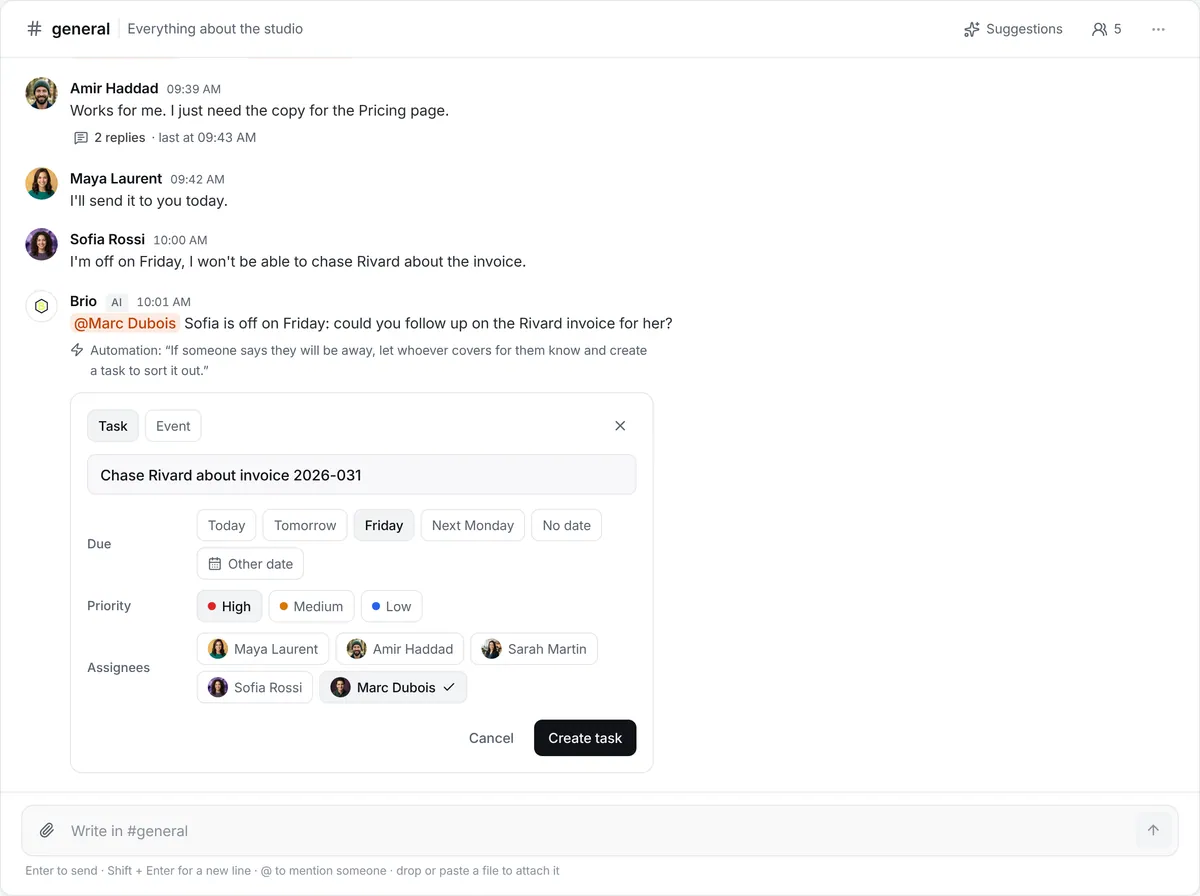


When
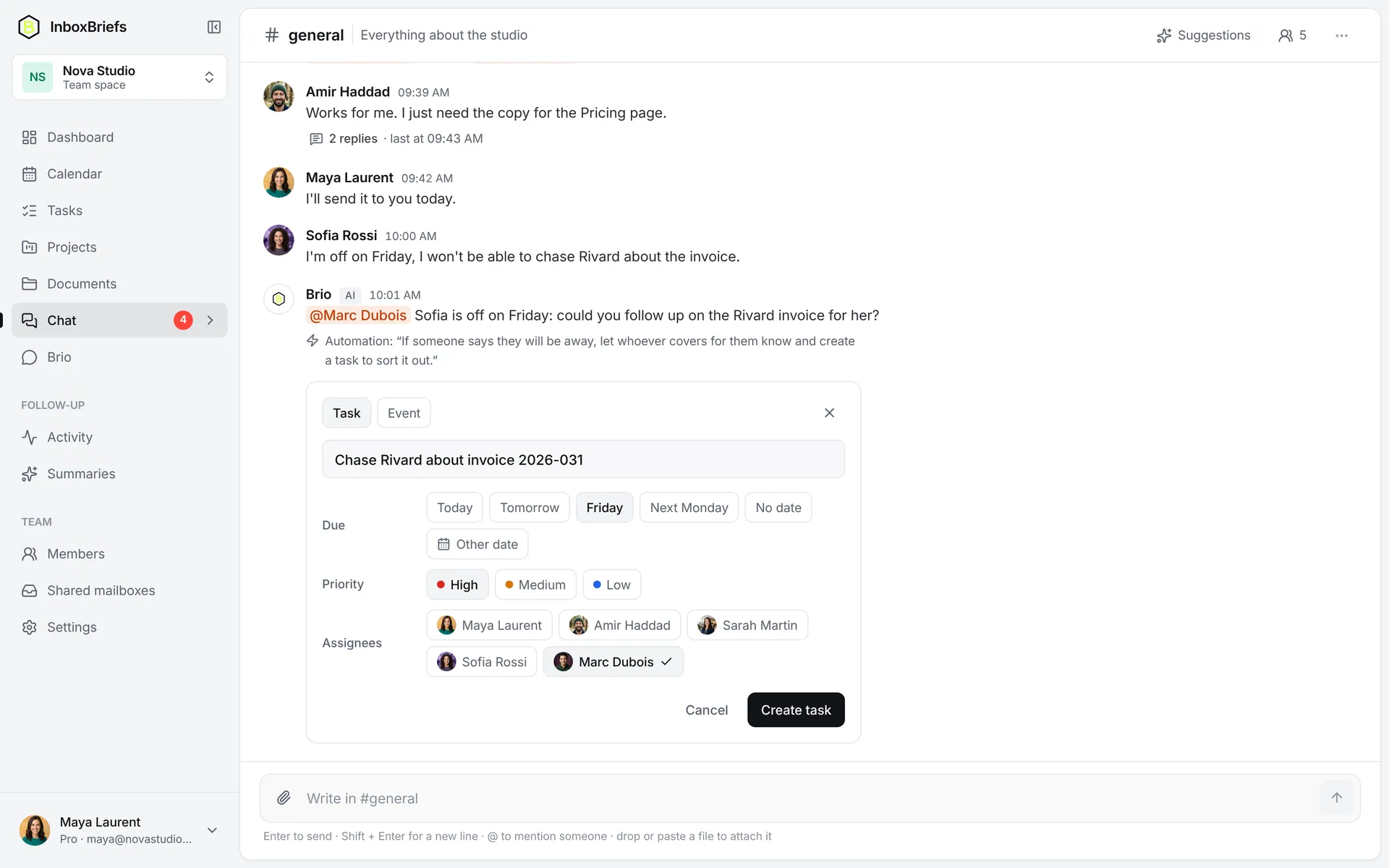
Someone says in the chat they'll be away
Then
The assistant @mentions whoever covers and proposes the task, ready in one click
With your “If… then…” automation
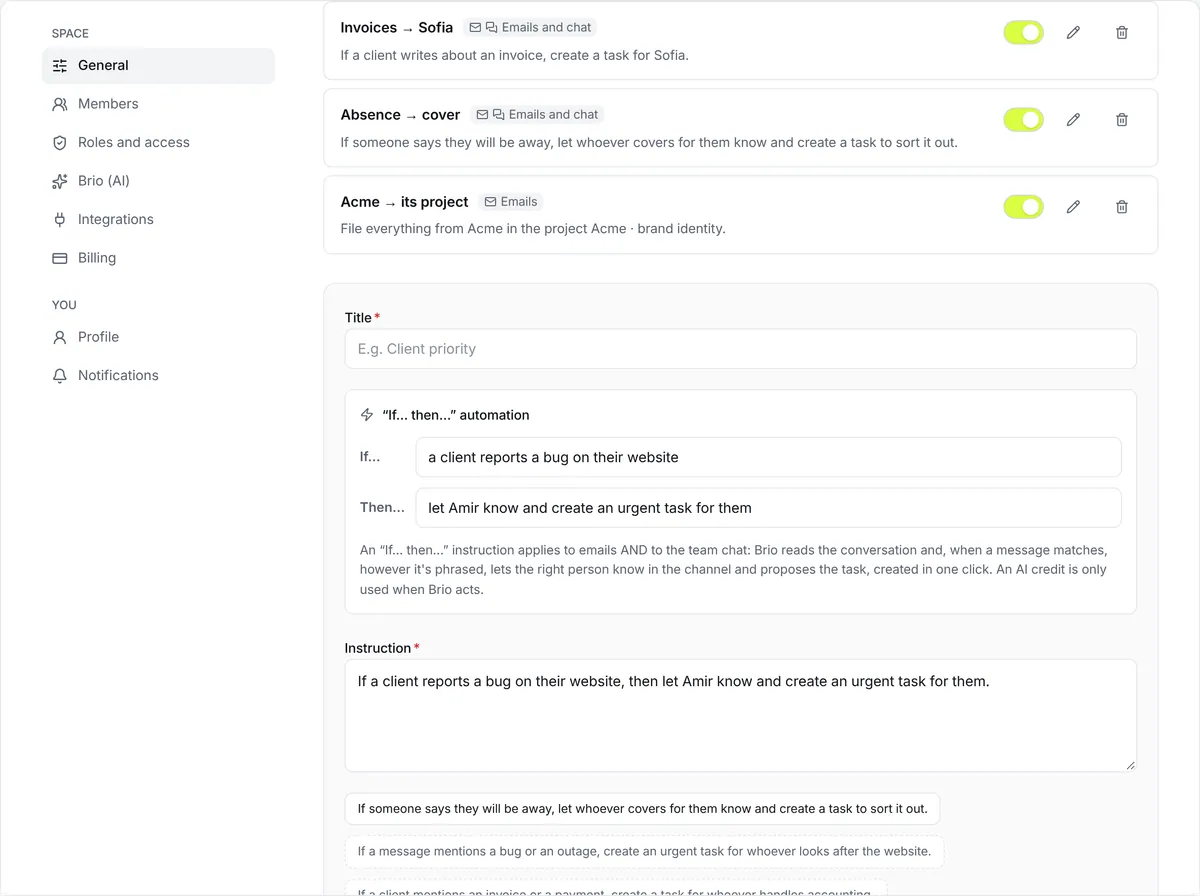
Write your automations like to a colleague: “If someone says they'll be away, let whoever covers for them know.” the assistant applies them to incoming emails and to the team's messages, even when it's phrased differently.
No credit card. Your automations are written in plain words.
How it works
No diagram to draw, no trigger to pick from a list: you write the situation, then what to do.
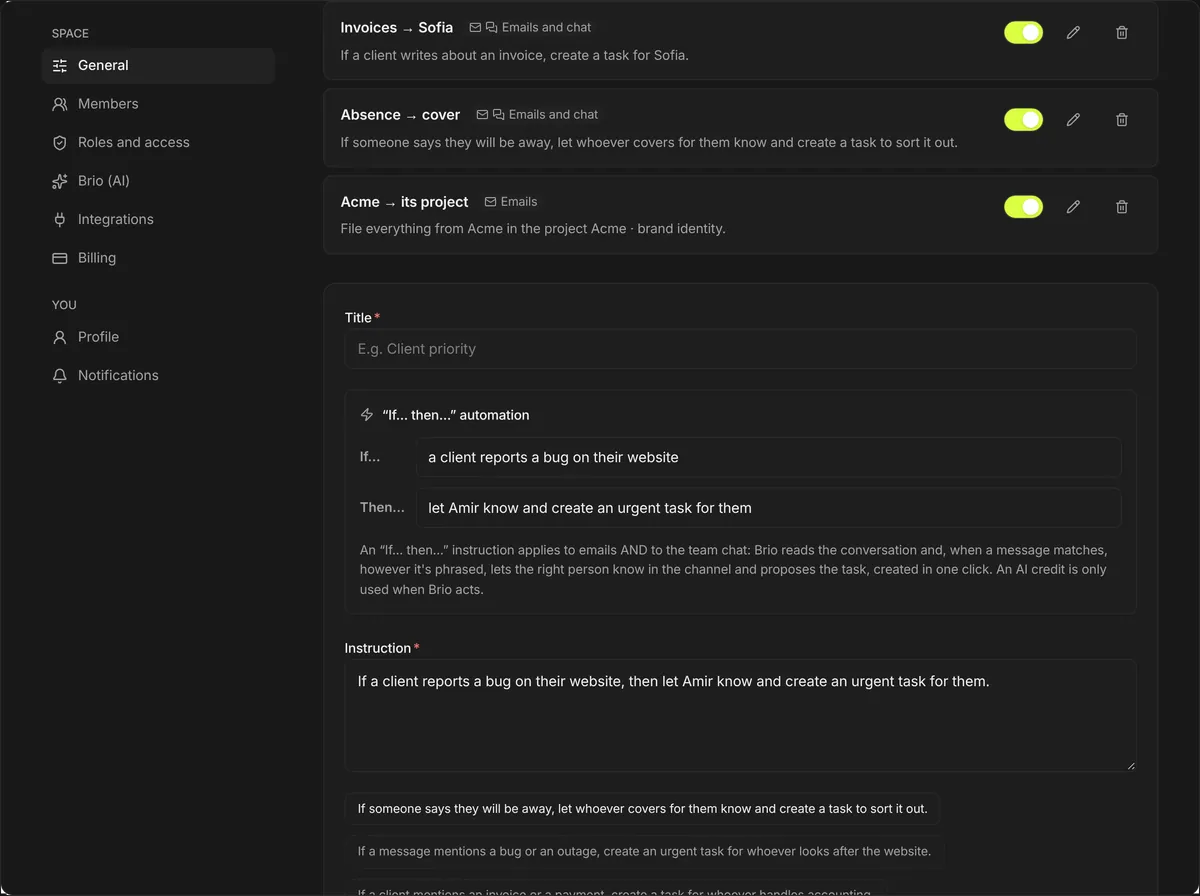
Your conditions
Pick what starts it, your conditions, then the actions. InboxBriefs writes it back as one sentence, for you to check.
Written by the assistant
Tell the assistant what you want to automate. If a detail is missing, it asks with choices to click, then shows it to you before turning it on.
In control
You have a few seconds to undo: what you take back starts nothing. Then the history shows what each automation did.
Most work as soon as your inboxes are connected. Yours take one sentence.
When
Someone says in the chat they'll be away
Then
The assistant @mentions whoever covers and proposes the task, ready in one click
With your “If… then…” automation
When
An email or a message matches one of your automations
Then
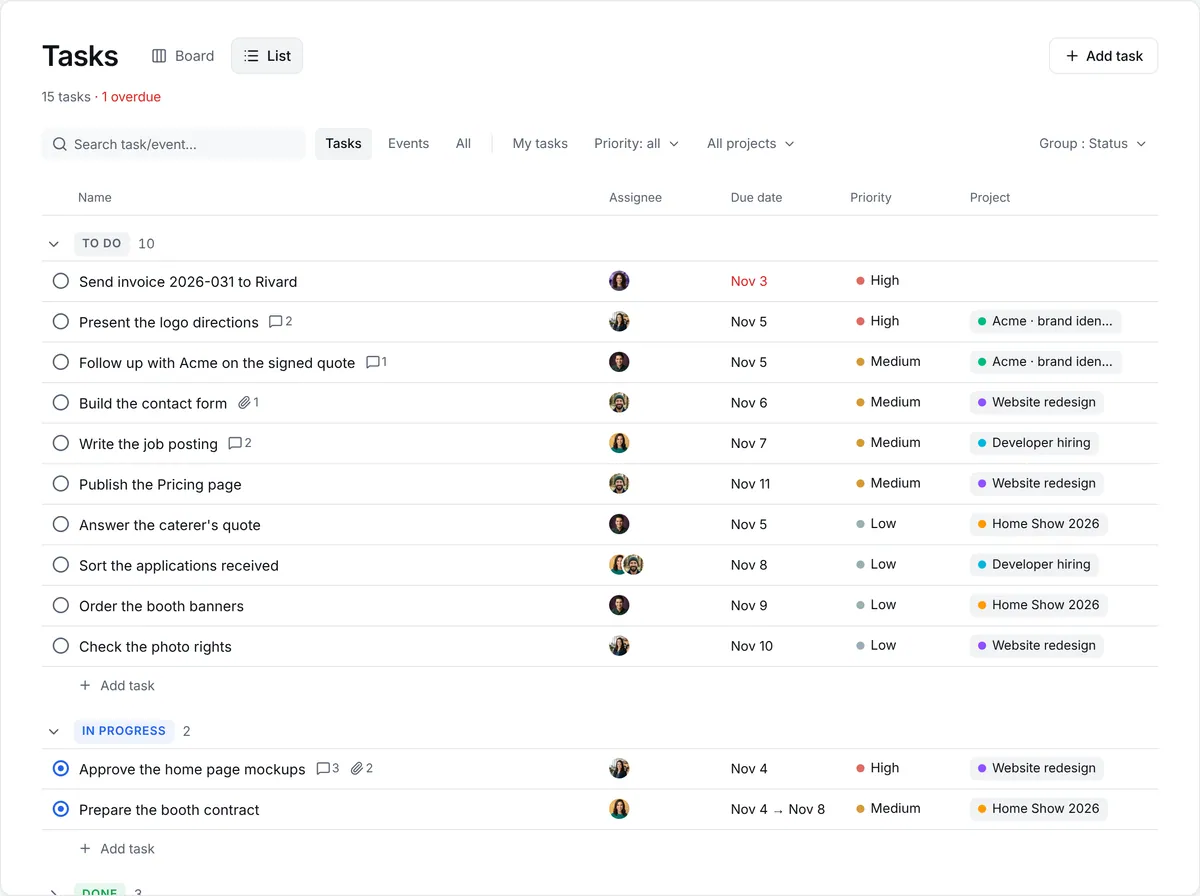
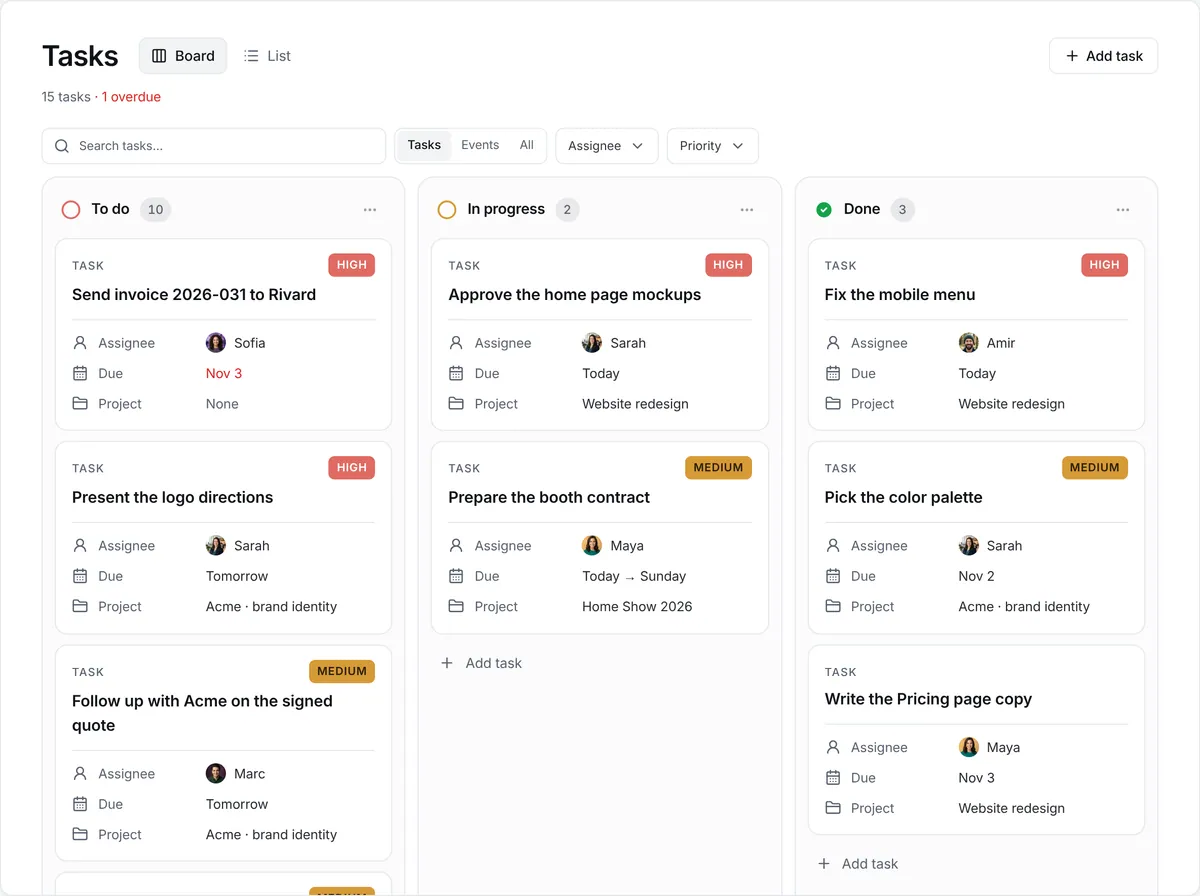
The right person is told, the task is proposed — assigned, dated, filed in its project
When
An email contains a request
Then
A dated task appears in your tasks
Within 15 minutes on paid plans
When
A client stops replying
Then
A follow-up is suggested, with its date
When
A reply shows it's done
Then
The matching task checks itself off
When
An appointment is moved by email
Then
The calendar updates
When
An attachment lands in a shared inbox
Then
It's filed in Documents, in the right folder
When
A project is created
Then
Its Documents folder is created with it, under its name
When
A due date gets close
Then
An email reminder goes out, when you chose
When
Someone @mentions you
Then
You're notified by email
When
Every morning, at the time you pick
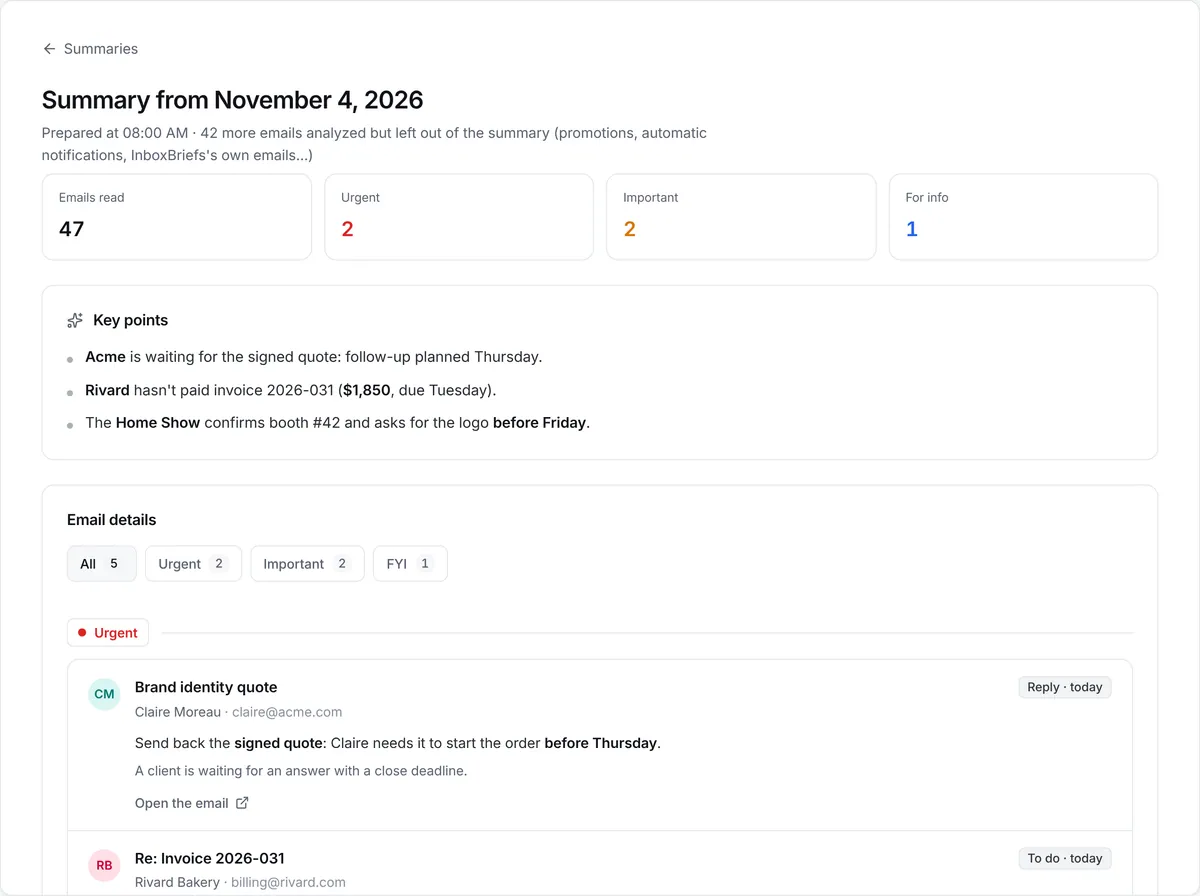
Then
Your inboxes' summary arrives, sorted
Integrations
Your automations start from what arrives in your Gmail, Outlook or IMAP inboxes and in the team chat.
See the integrationsYour automations
One sentence is enough. The assistant applies it to incoming emails and to the chat's messages, and tells the right people.
“If a client writes about an invoice, create a task for Sofia.” Every invoice ends up in her tasks, no sorting by hand.
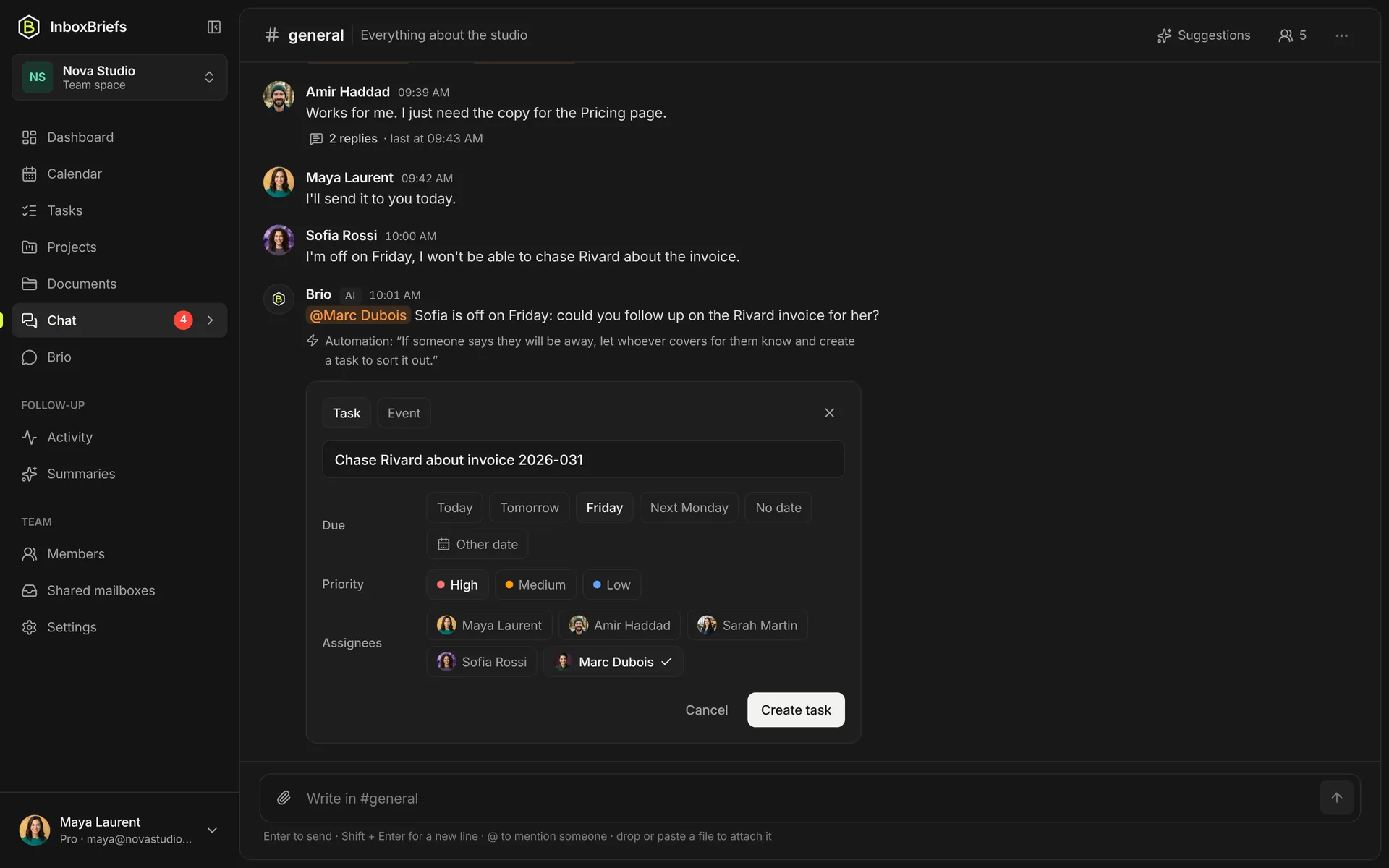
Sofia writes that she'll be away on Friday: the assistant tells Marc, who covers for her, and proposes the follow-up she can't do.
Learn more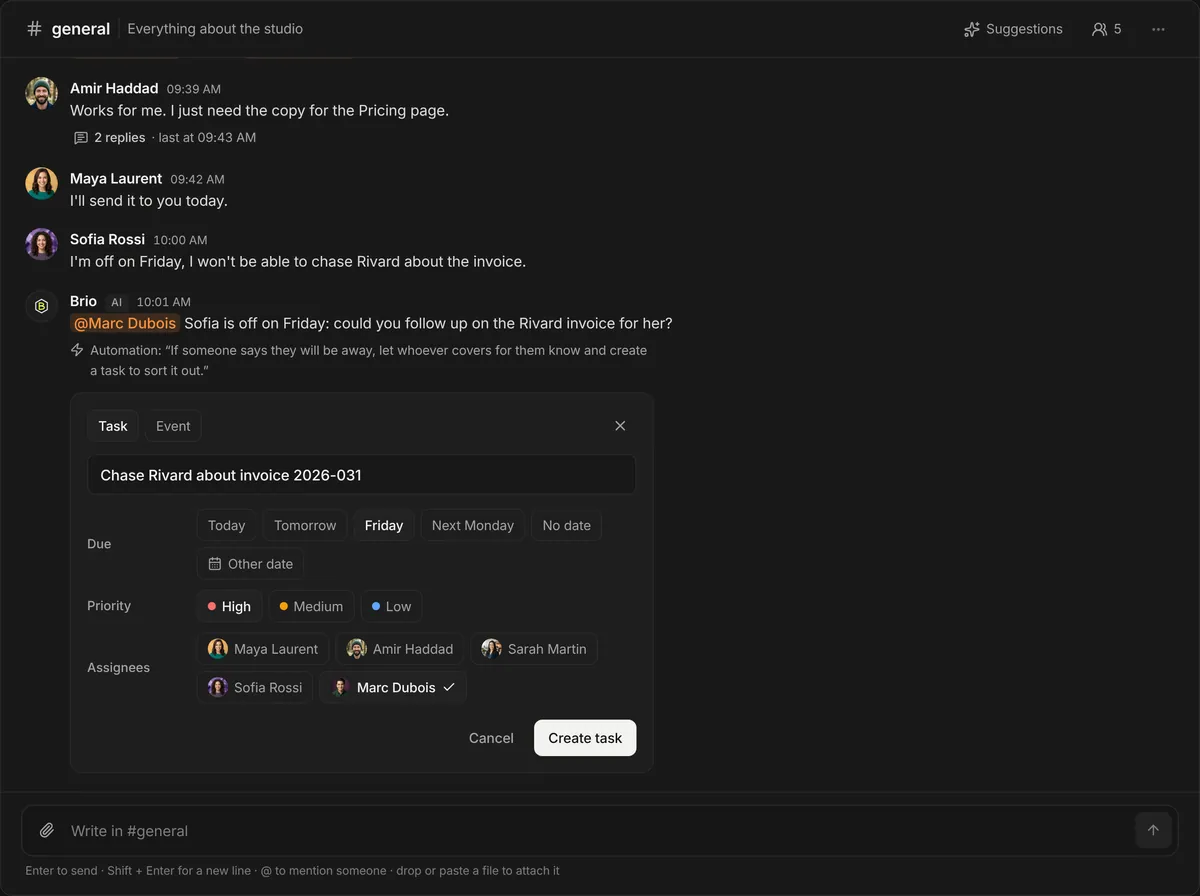
Newsletters, promotions, notifications: set aside, out of the summary, there whenever you want them. What matters comes first.
Learn more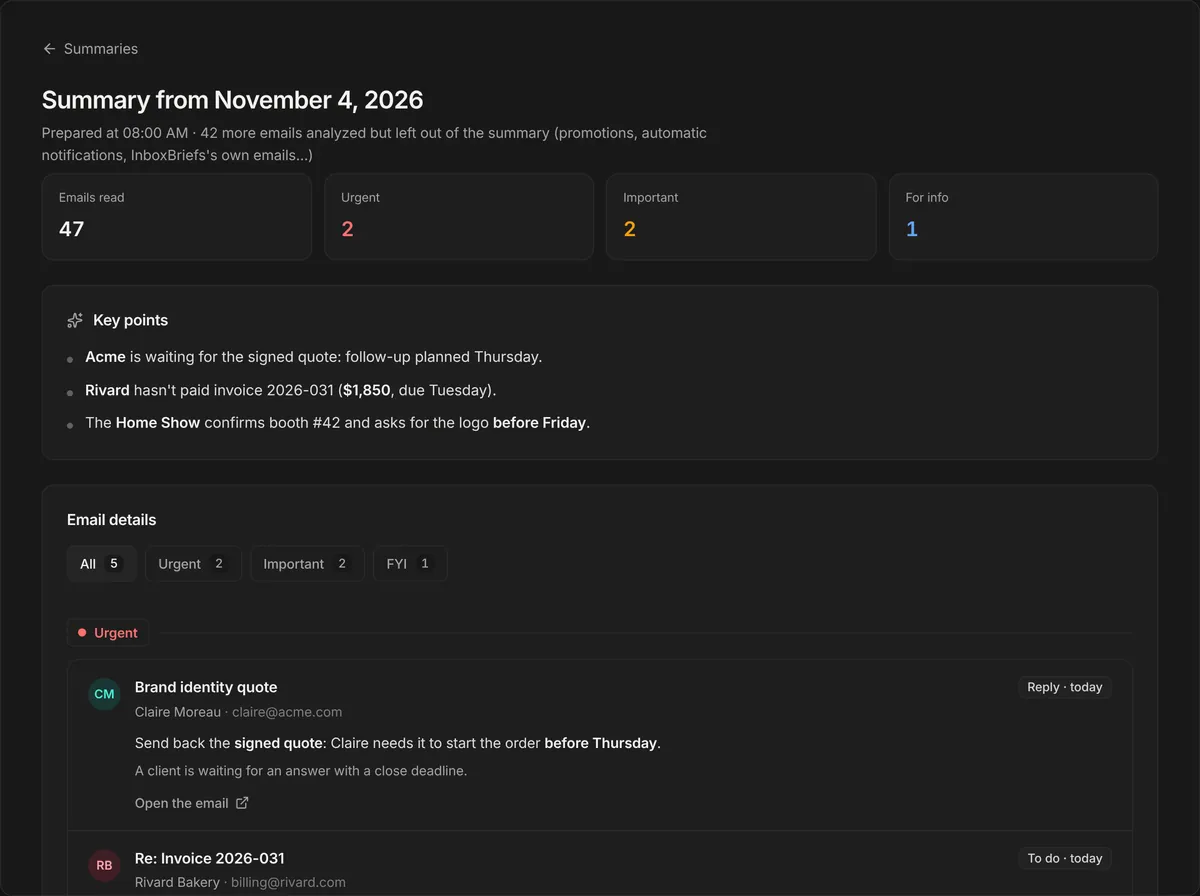
Follow-through
InboxBriefs watches replies, due dates and attachments, and proposes what comes next.
A client has been quiet for five days: the follow-up is suggested, with its date, before the deal cools down.
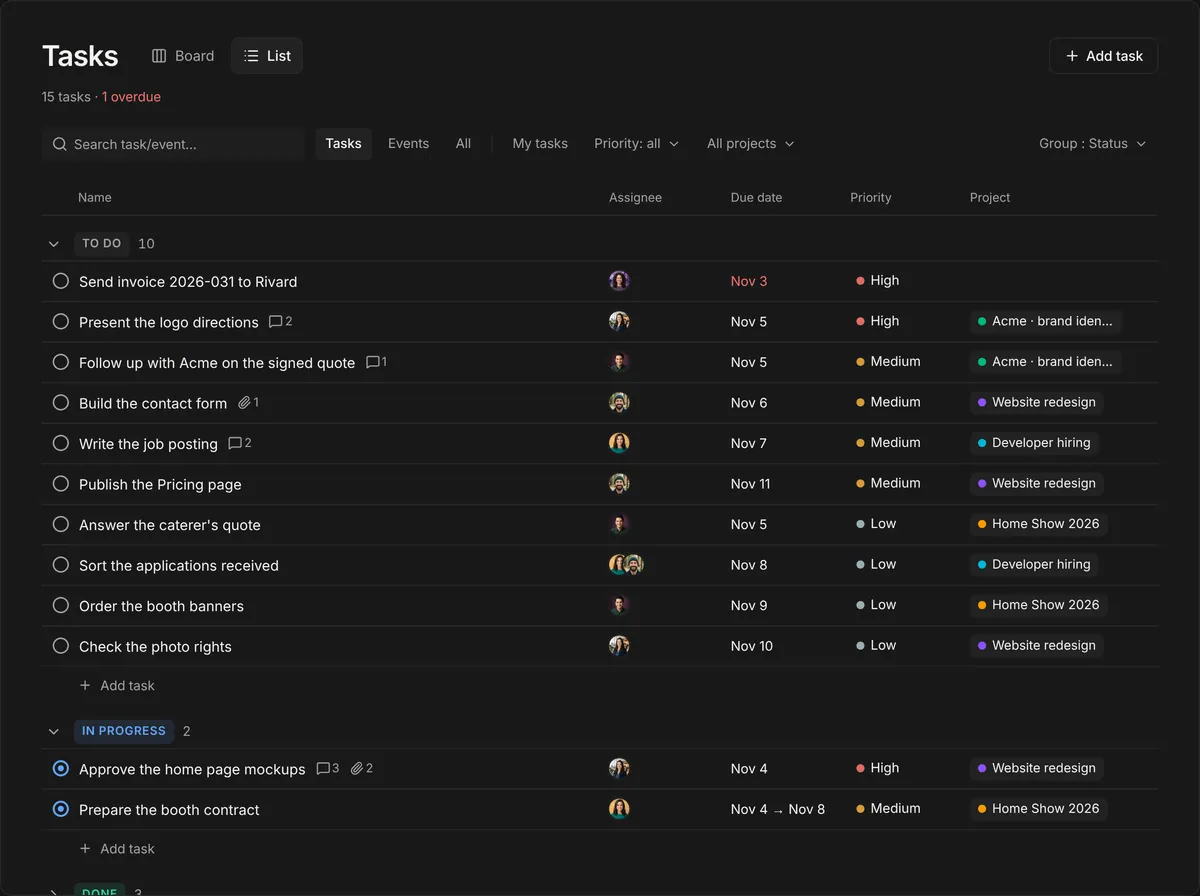
A reply shows it's done: the task checks itself off. Nobody has to go and move the card.
Learn more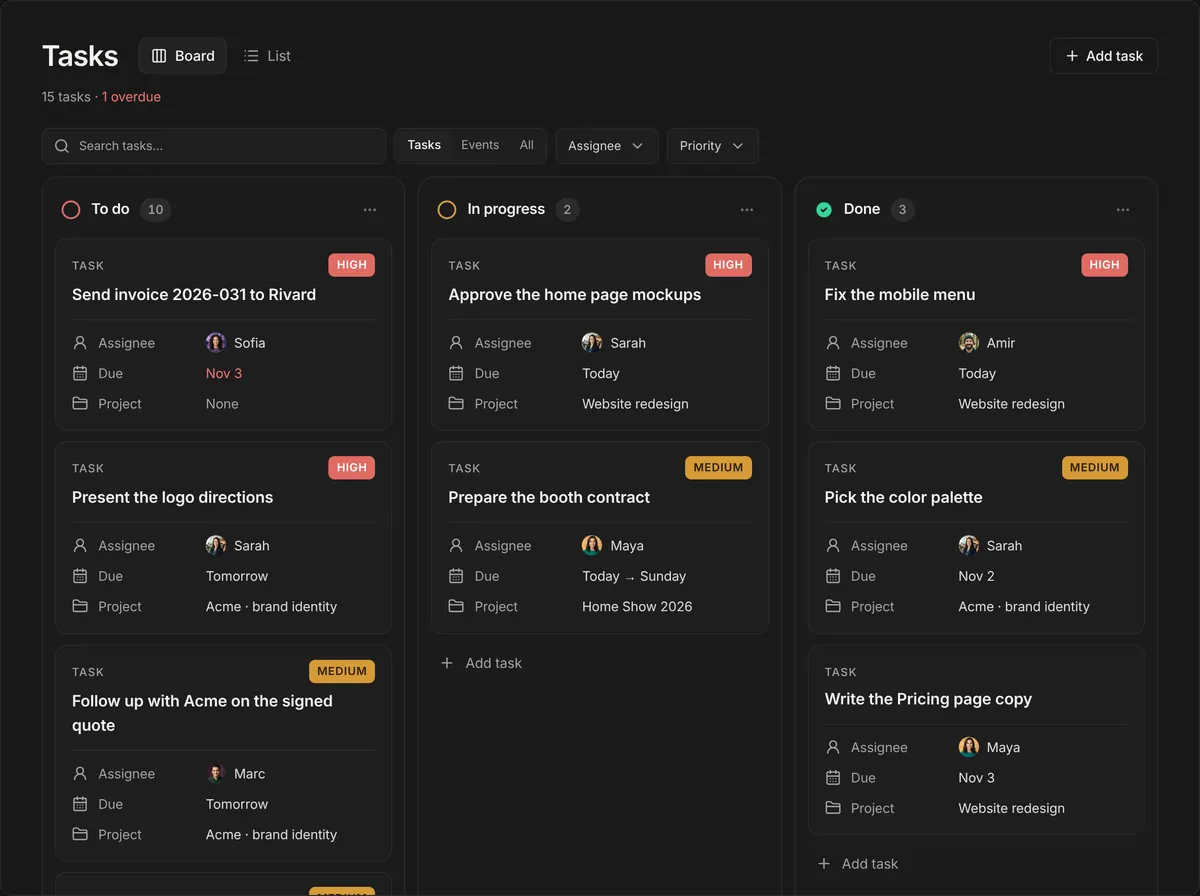
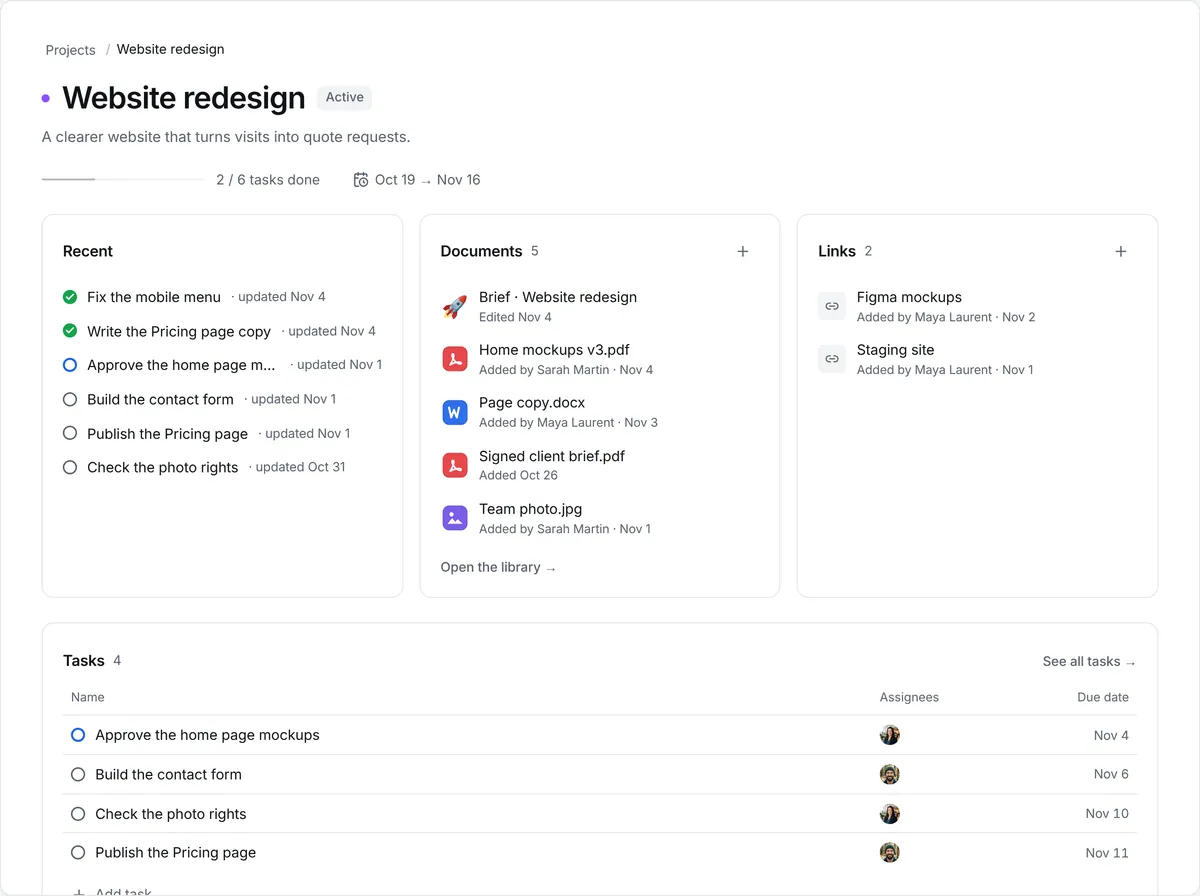
Shared-inbox attachments are filed in Documents, and every project has its folder: on its page, files and links sit next to the tasks.
Learn more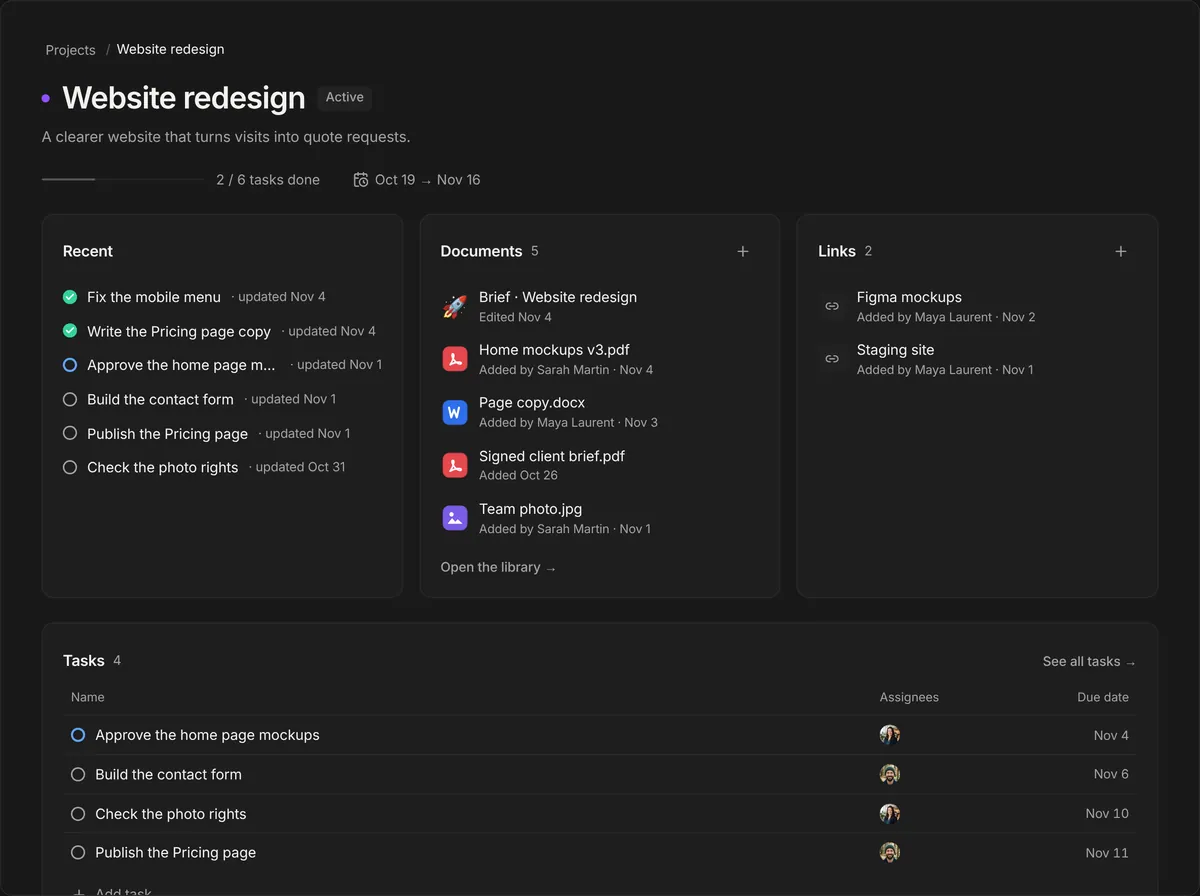
One app
What you just saw is only part of InboxBriefs. Automations, integrations, tasks, projects, docs, chat, calendar, email and AI: one subscription, one app.
Not for the essentials: the summary, tasks pulled from email, follow-ups, attachment filing and project folders work as soon as your inboxes are connected. Your automations take one sentence, in the space's settings (or your preferences, on your own).
When your space has an “If… then…” automation, the assistant rereads the conversation a few seconds after a run of messages and checks whether a situation matches, even phrased differently. Reading costs your space nothing: an AI credit is only used when the assistant acts.
It proposes them, ready in one click: title, owner, due date, project. Nothing is created or changed without your click. The “Suggestions” button also reads the channel on demand.
No. Inboxes are connected read-only: InboxBriefs can't send, reply or delete. It suggests the follow-up; you send it.
On an email: prioritize it, keep it out of the summary, turn it into a task and, in a team space, file it in a project and assign it. In the chat: tell the right person with an @mention and propose the tasks it asks for.
On paid plans, a received request shows up in your tasks within 15 minutes. In the chat, the assistant usually steps in less than a minute after the last message.
Connect an inbox, invite the team, write “If… then…”: the assistant does the rest.