The app
See InboxBriefs, screen by screen
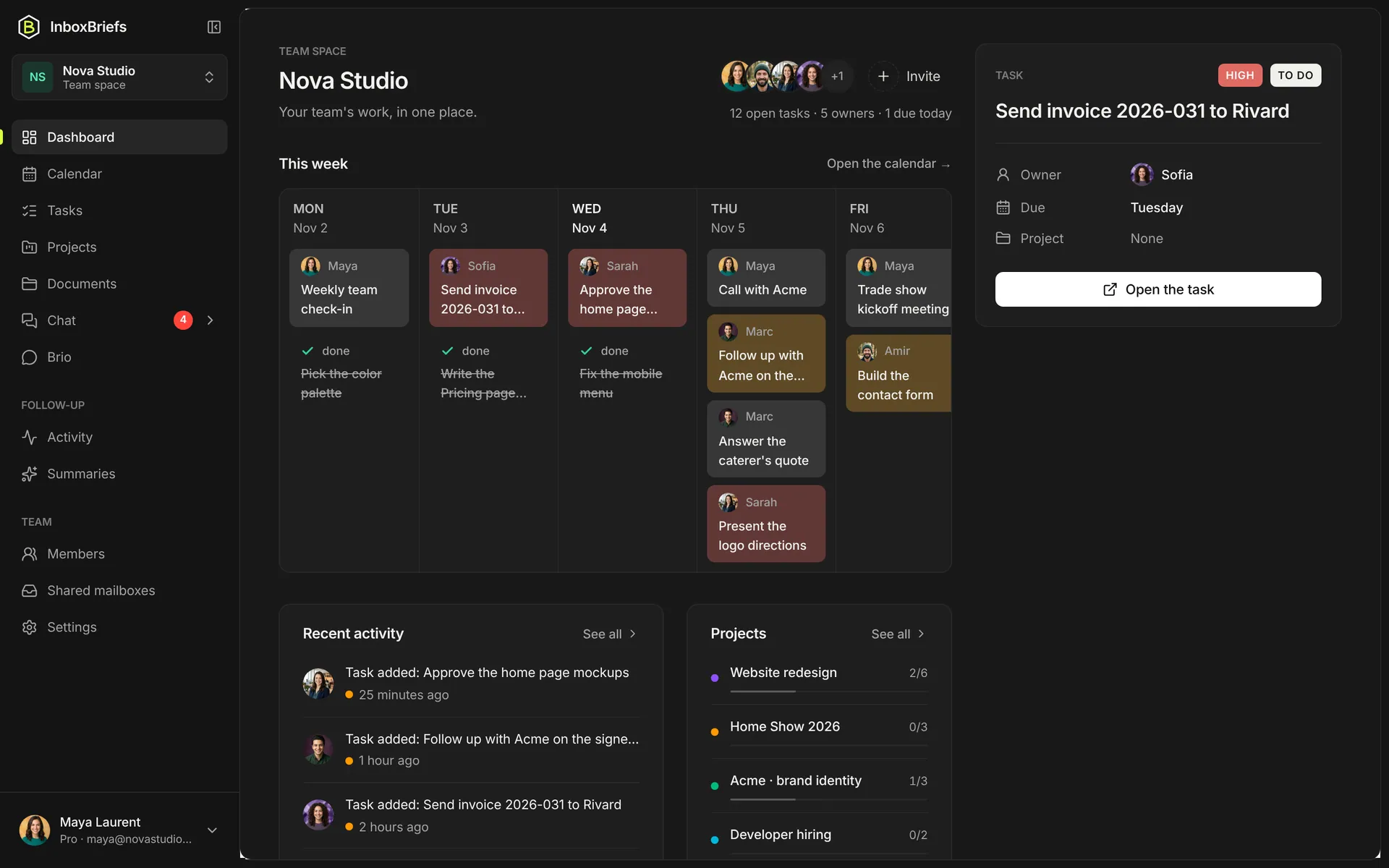
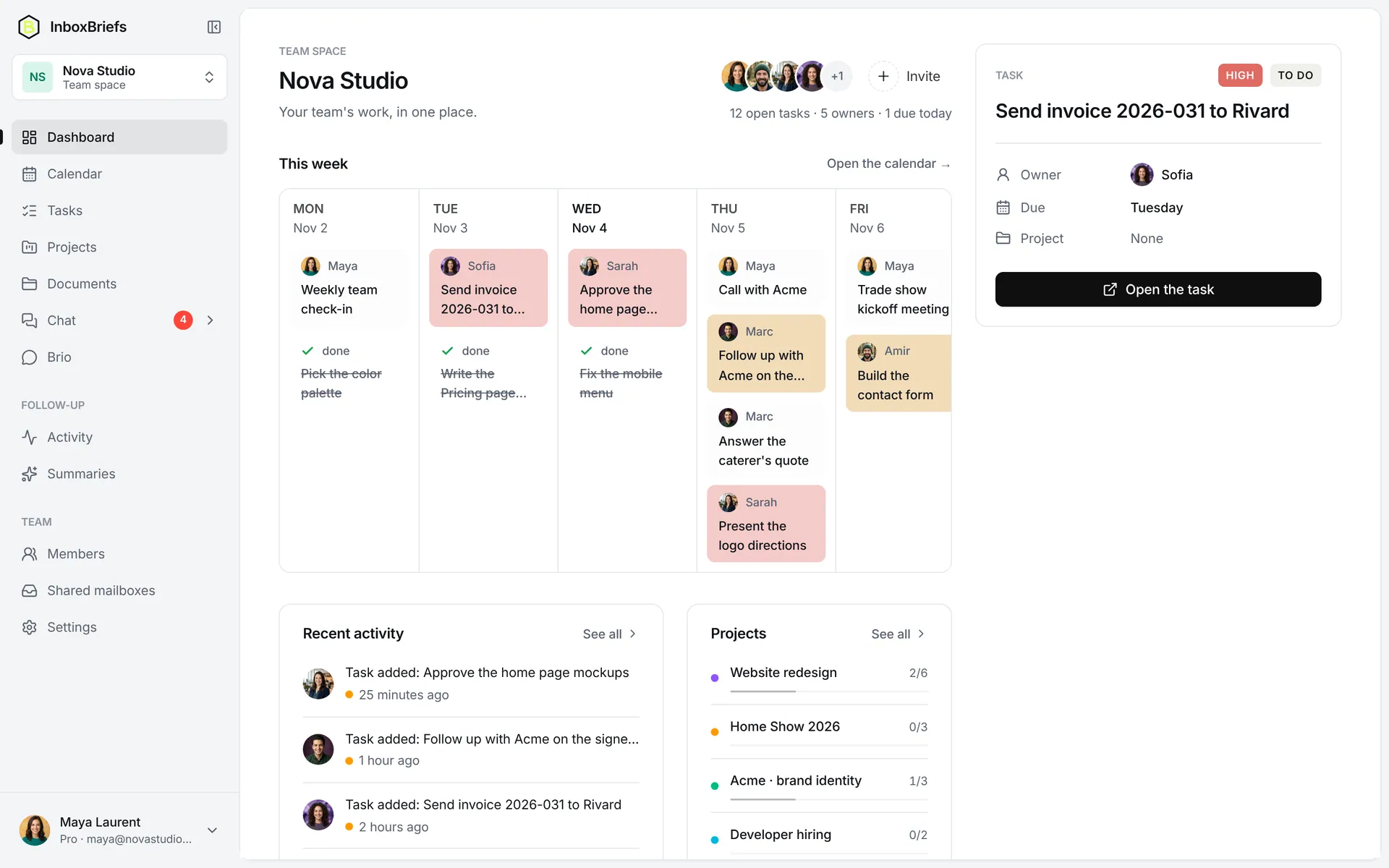
Tasks, projects, docs, chat, calendar, email and the AI assistant that ties it all together. Here are the real screens, with an example team.
How it works
Connect an inbox. InboxBriefs does the rest.
Three steps, and your inbox turns into a to-do list that's sorted, dated and followed through to the end.
Connect your inboxes
Gmail, Outlook and Microsoft 365, or any IMAP server. Read-only access, revocable in one click.
The integrationsEverything gets organized
A sorted summary every morning, tasks created from requests, meetings added to your calendar.
The summary and sortingNothing gets lost
You reply, the task ticks off. A meeting moves, your calendar follows. Nobody answers, a follow-up is suggested.
The automationsTasks
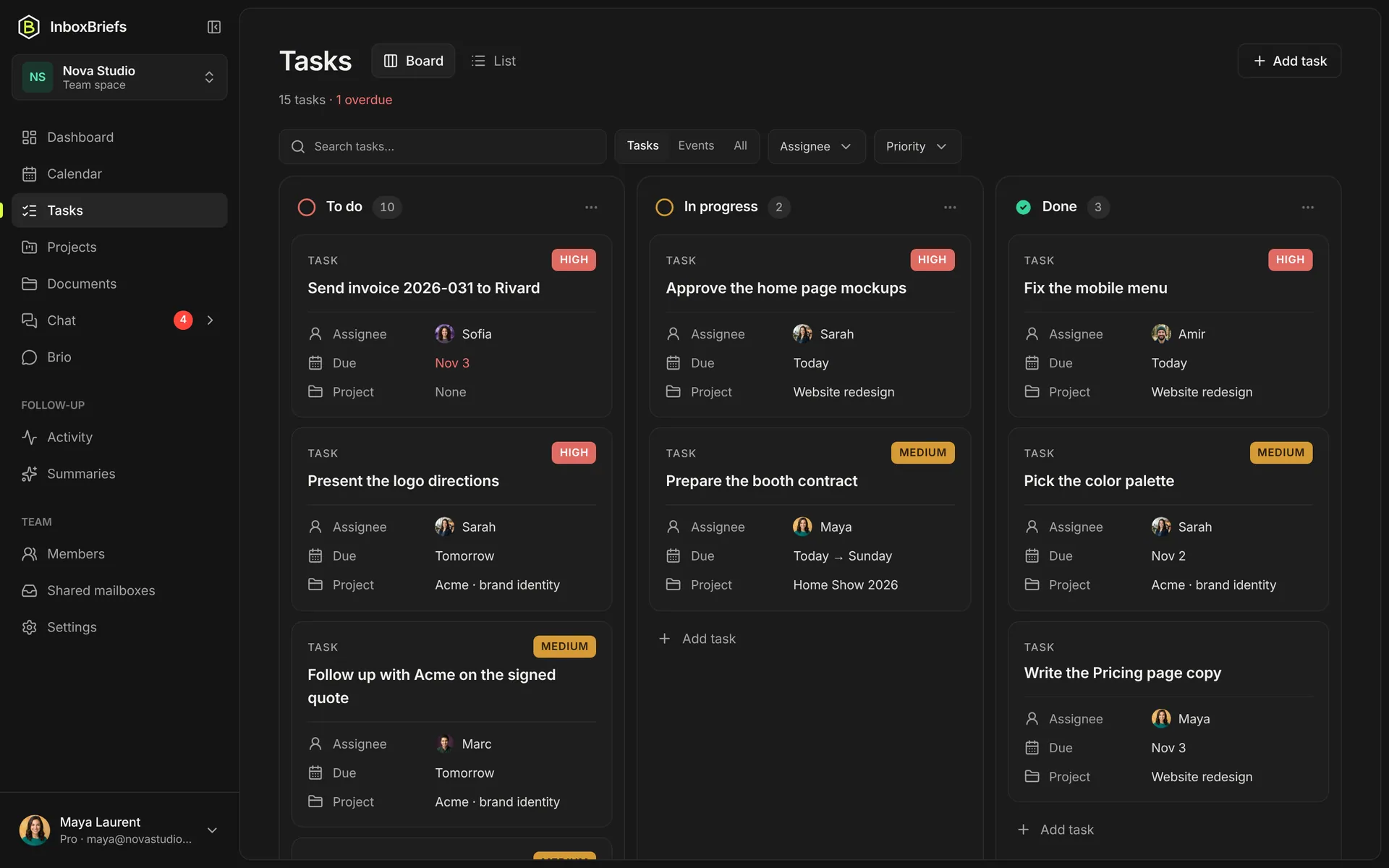
Clear tasks, dragged from one column to the next
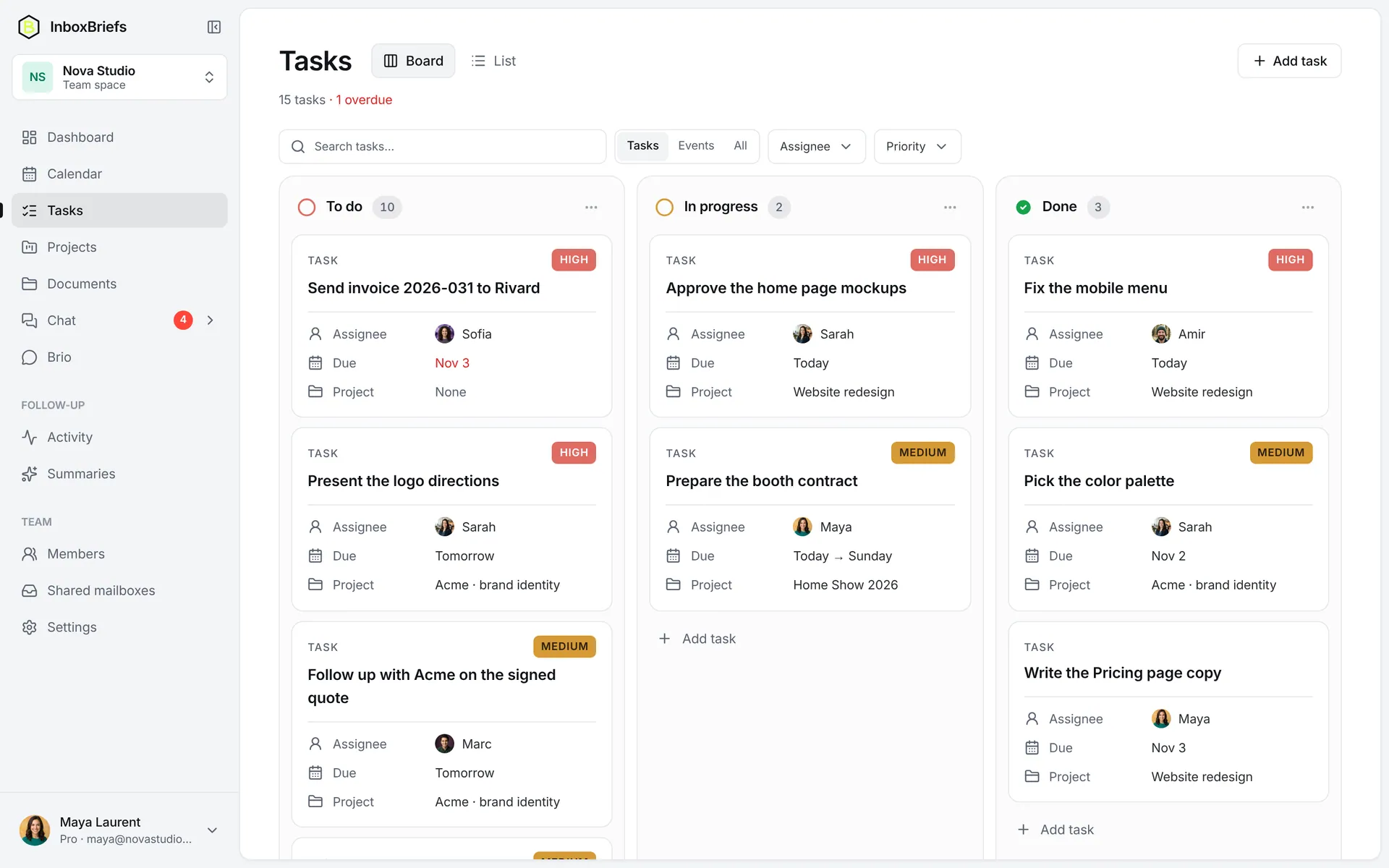
To do, In progress, Done: drag a card and its status changes. Each task has its owners, due date, priority and project.
- Board or List view, filters by person and priority
- Late tasks stand out in red
- A task opens on its own page, with notes and comments
Chat
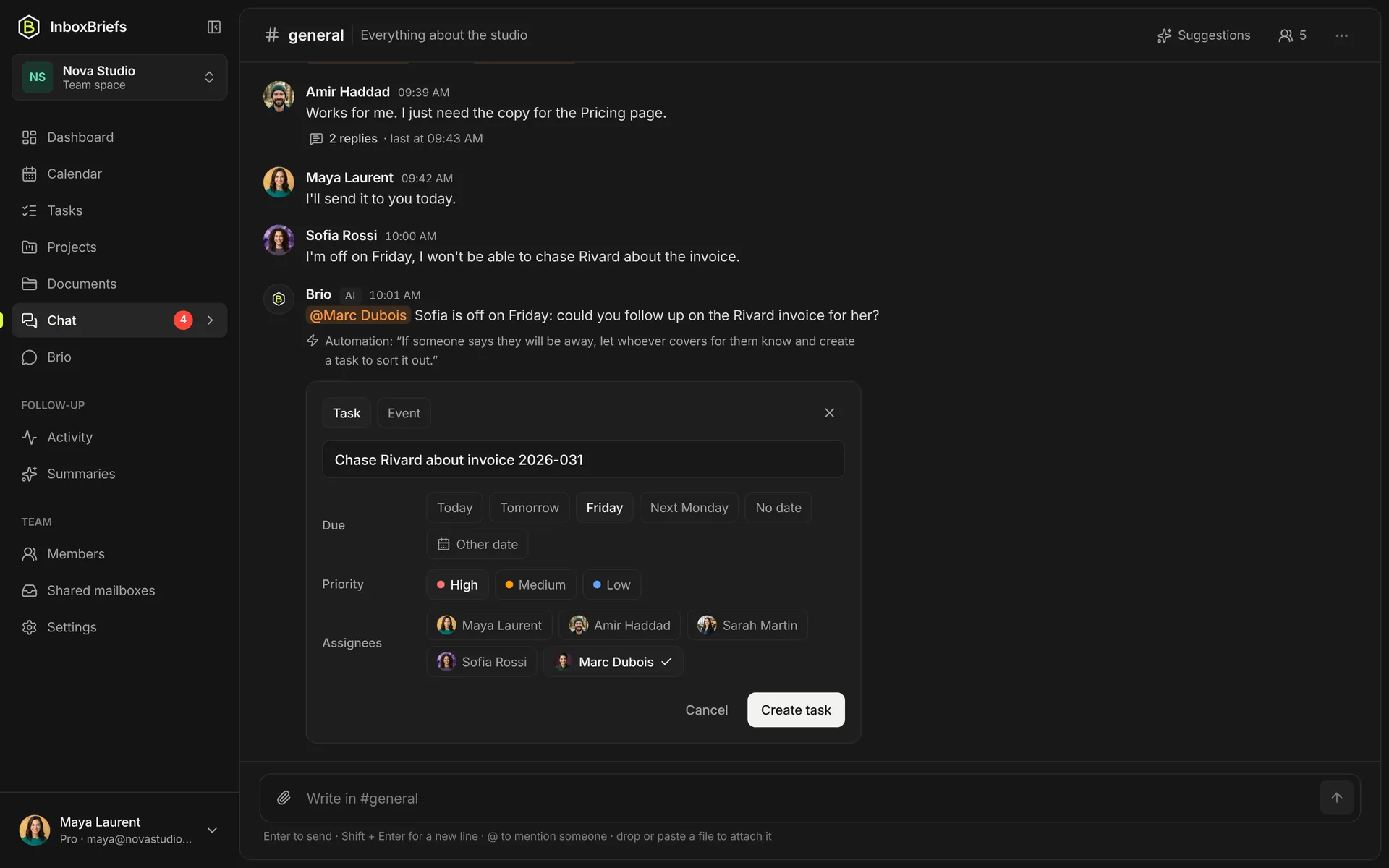
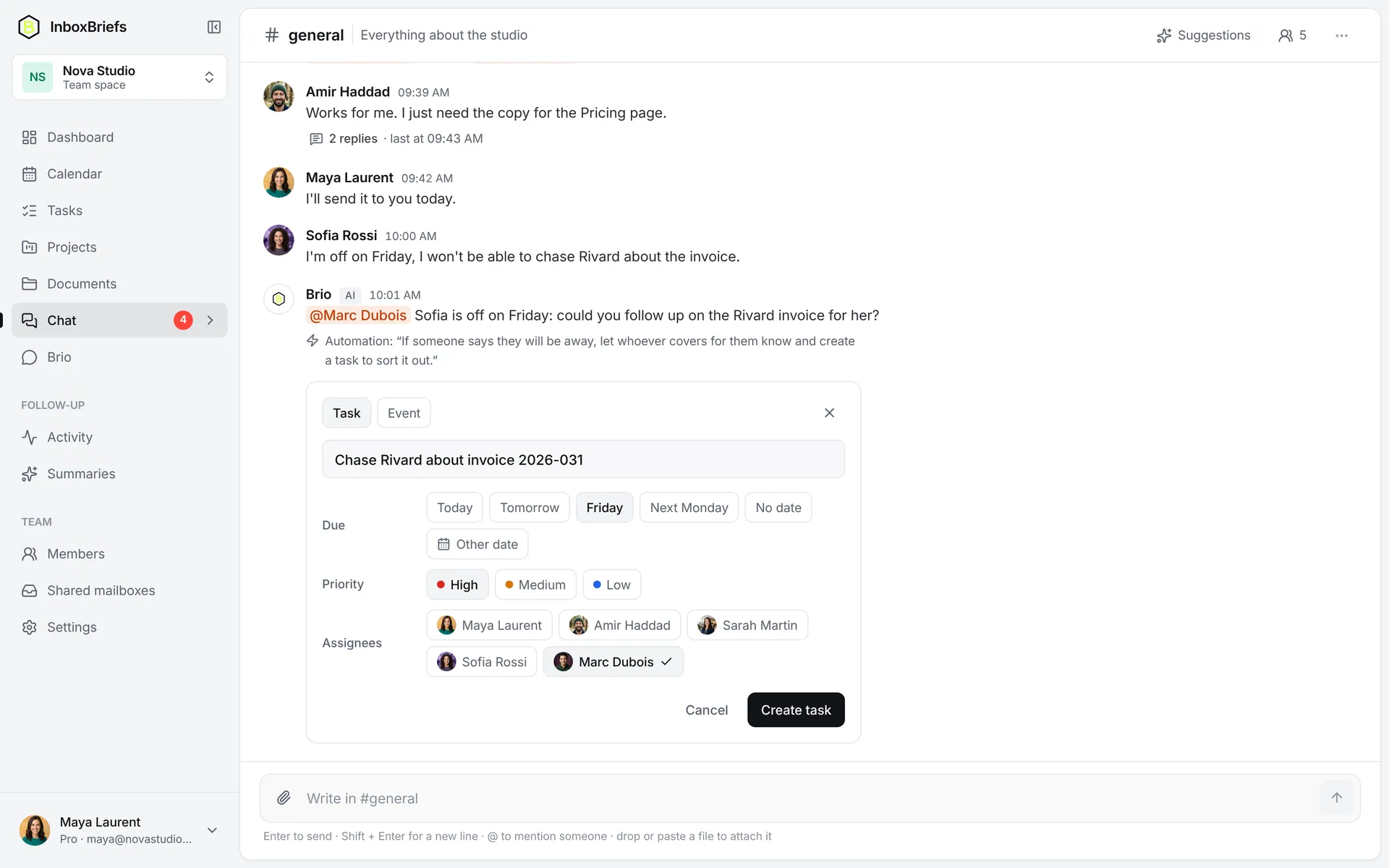
The chat that turns into work
Channels, direct messages, threads and @mentions. When a message matches one of your automations, the assistant lets the right person know and proposes the task.
- Sofia says she's off: the assistant lets Marc know
- The task is ready, created in one click
- The mentioned person gets an email when away
Docs
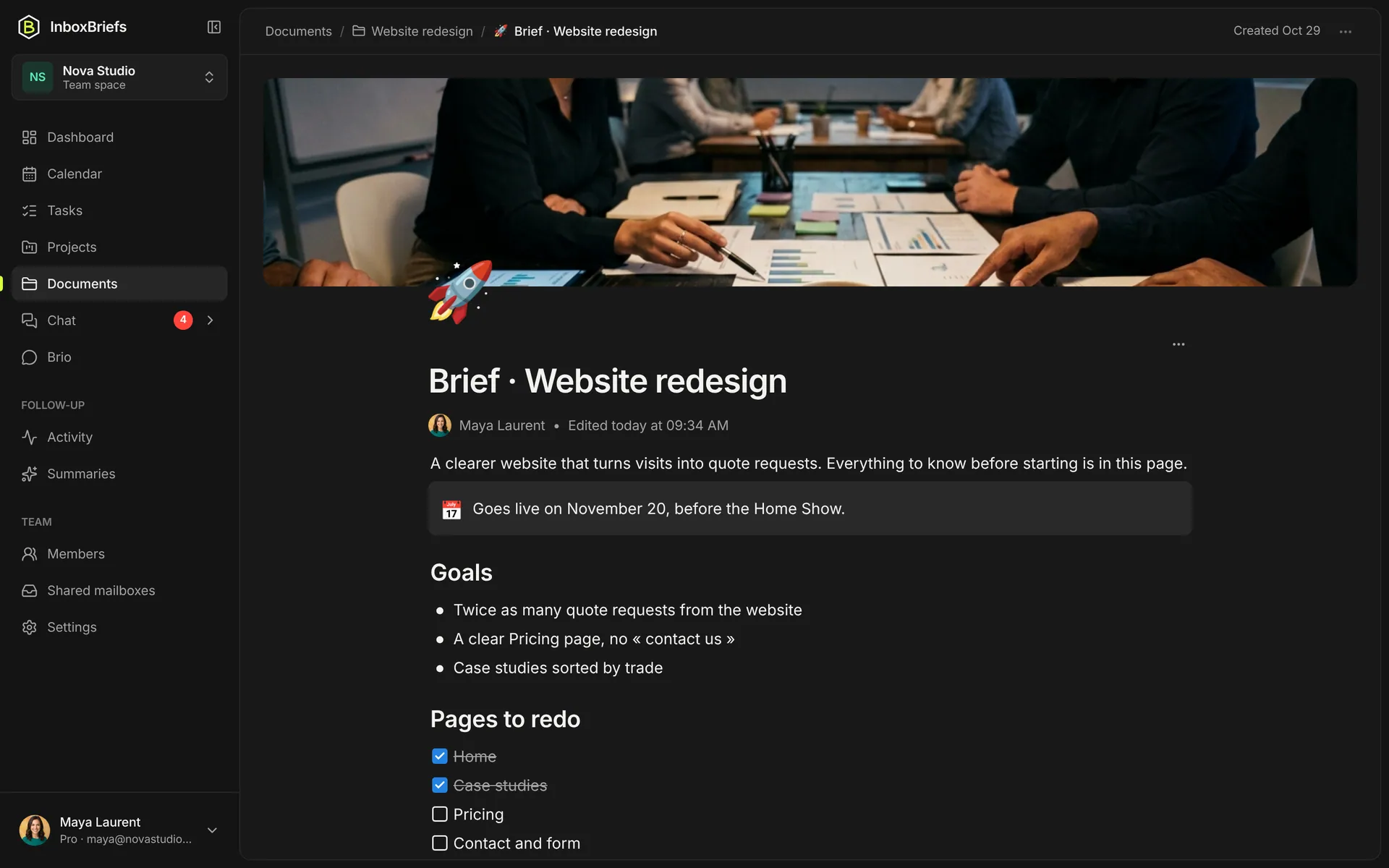
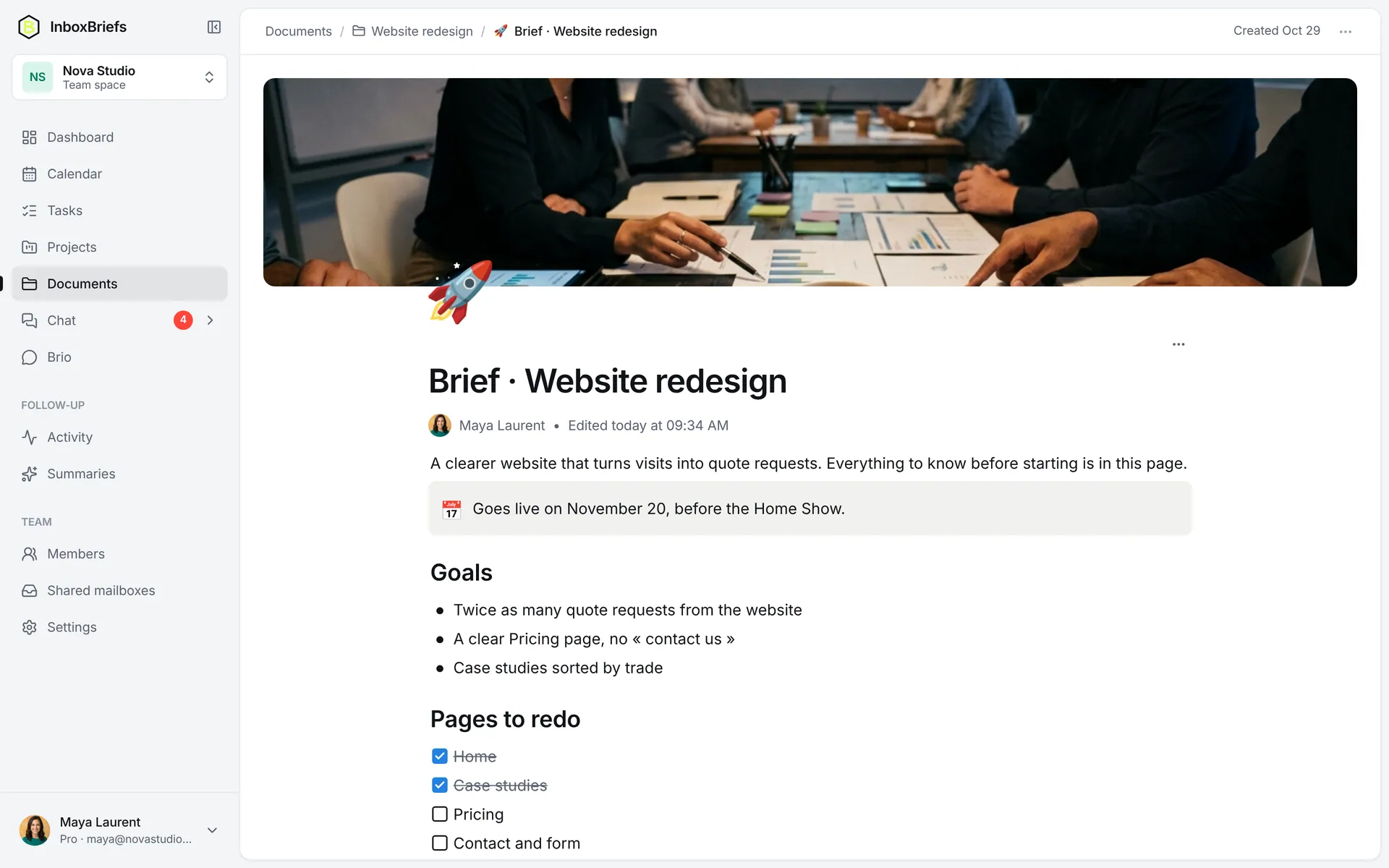
Docs people actually want to read
Write your briefs, meeting notes and procedures in the app, as in Notion: cover image, callouts, checkboxes, sub-pages.
- Filed in the project's folder, created with it
- Received attachments file themselves
- “/” to insert a block
Projects
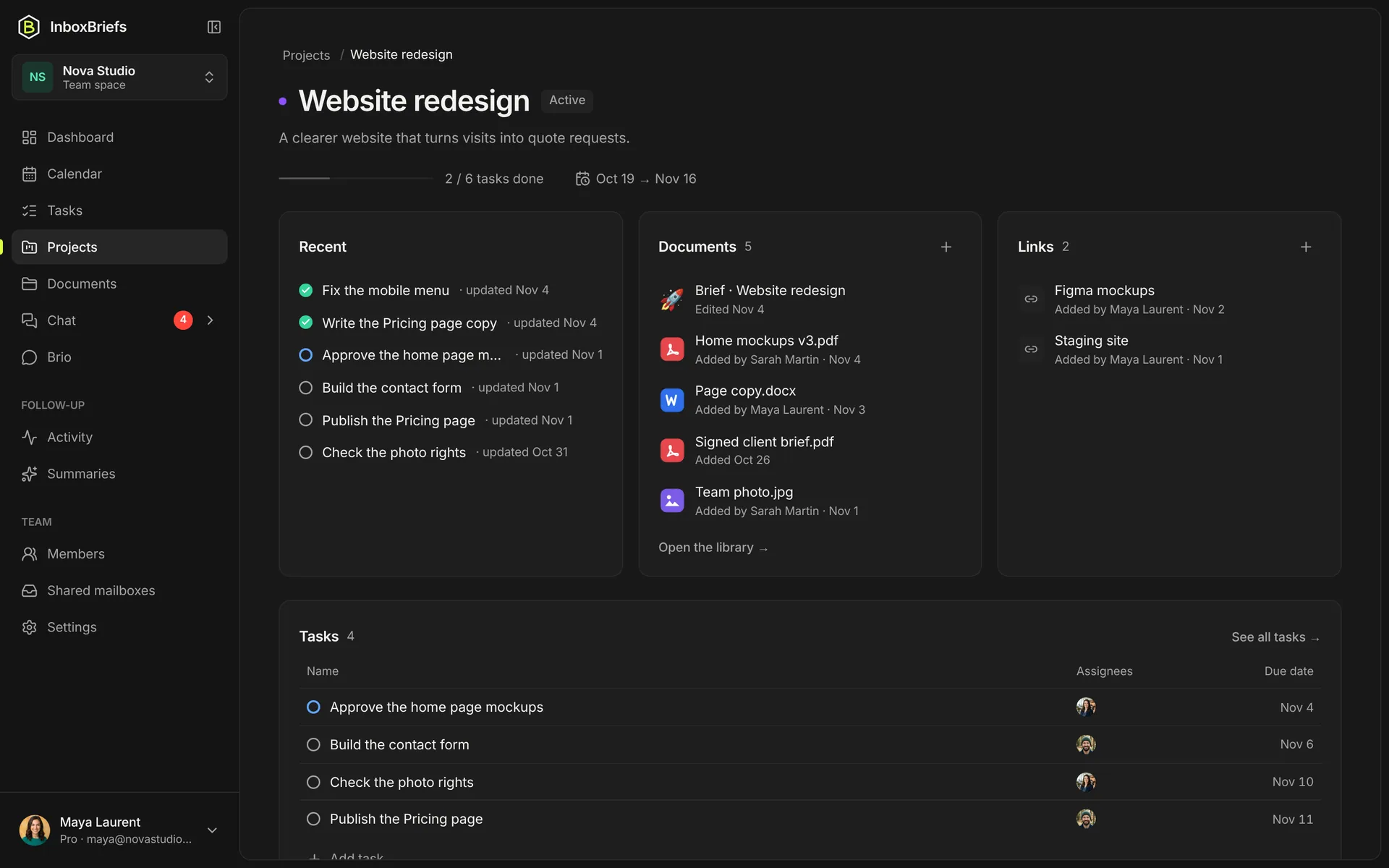
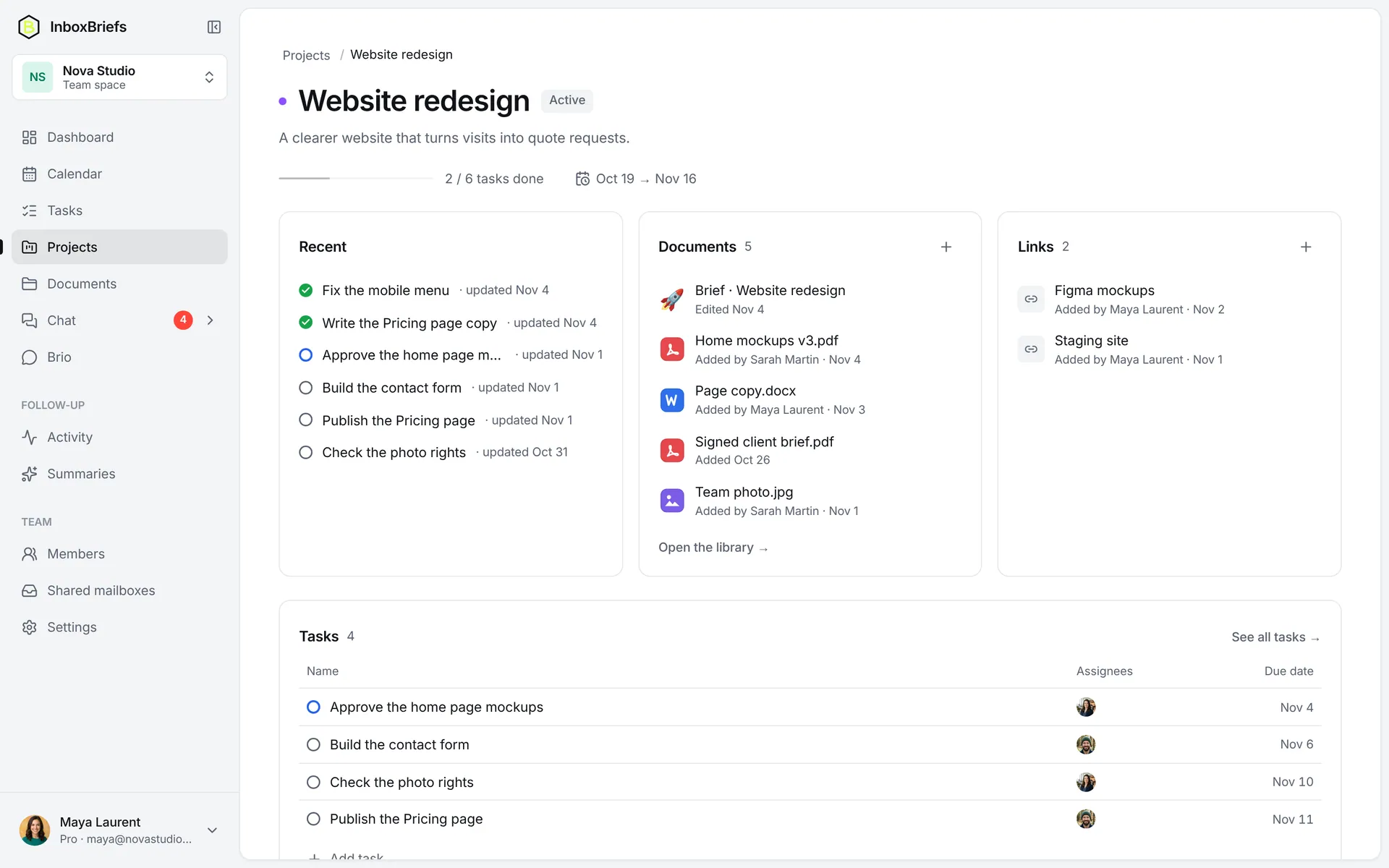
Every project has its page
Progress, open tasks, documents, links and upcoming deadlines of the project, on a single page.
- Progress computed from the tasks
- The project's files and links
- For a team or on your own
Calendar
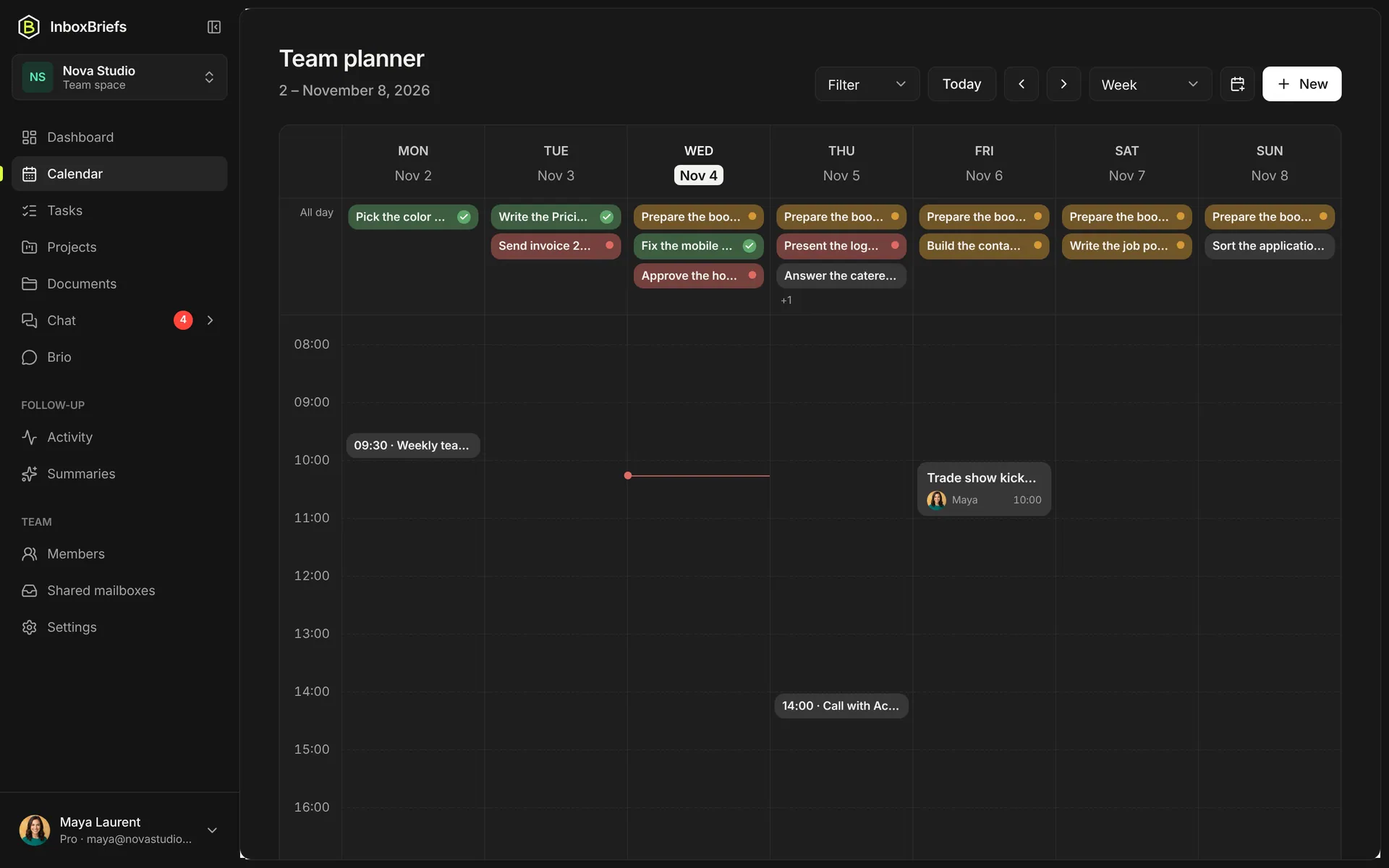
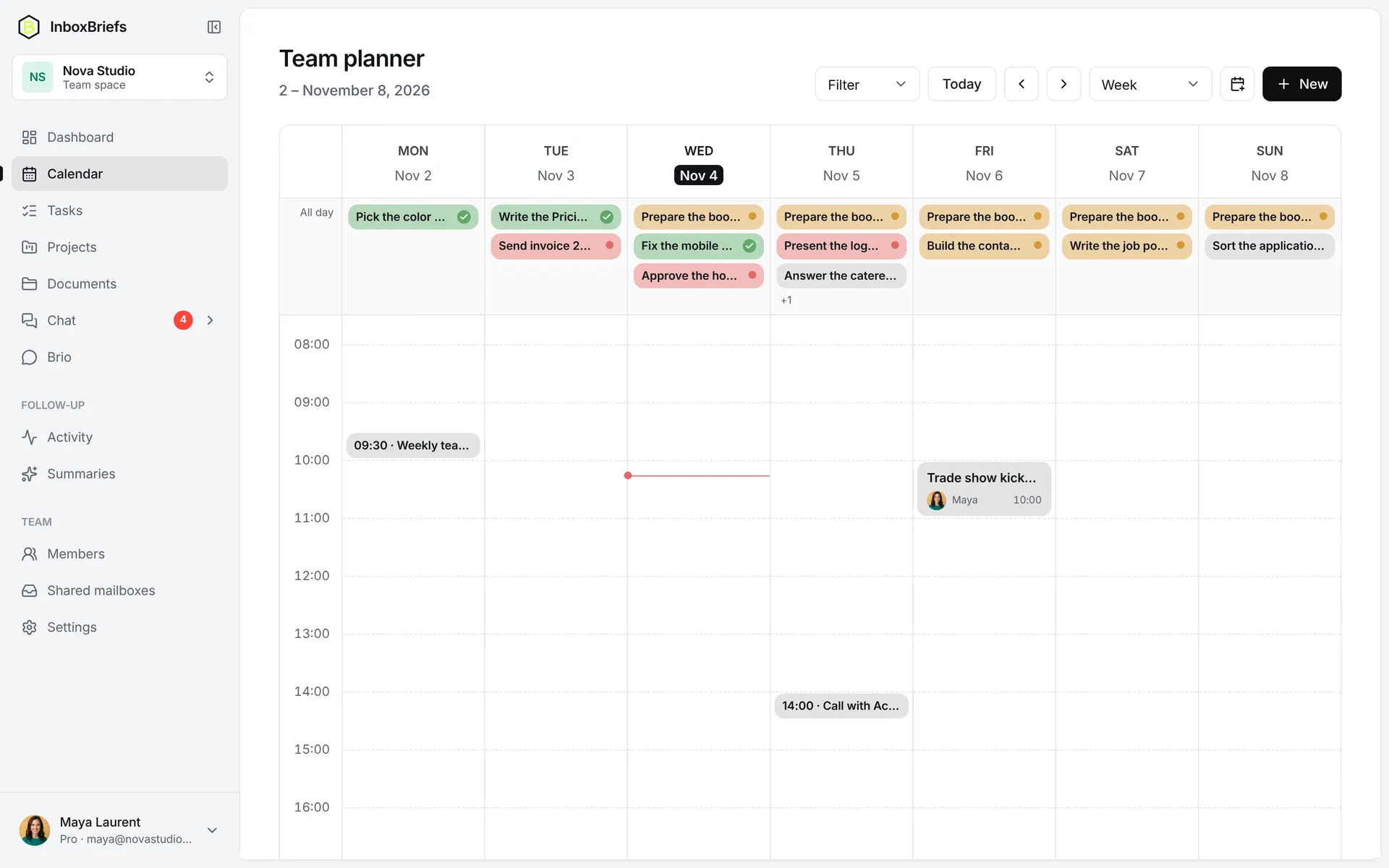
The whole team's calendar
Everyone's meetings, appointments and deadlines, next to your Google, iCloud or Outlook calendars. Drag an event to move it.
- Day, week and month views
- Email reminders
- Your external calendars alongside, read-only
Assistant
The AI assistant that knows your work
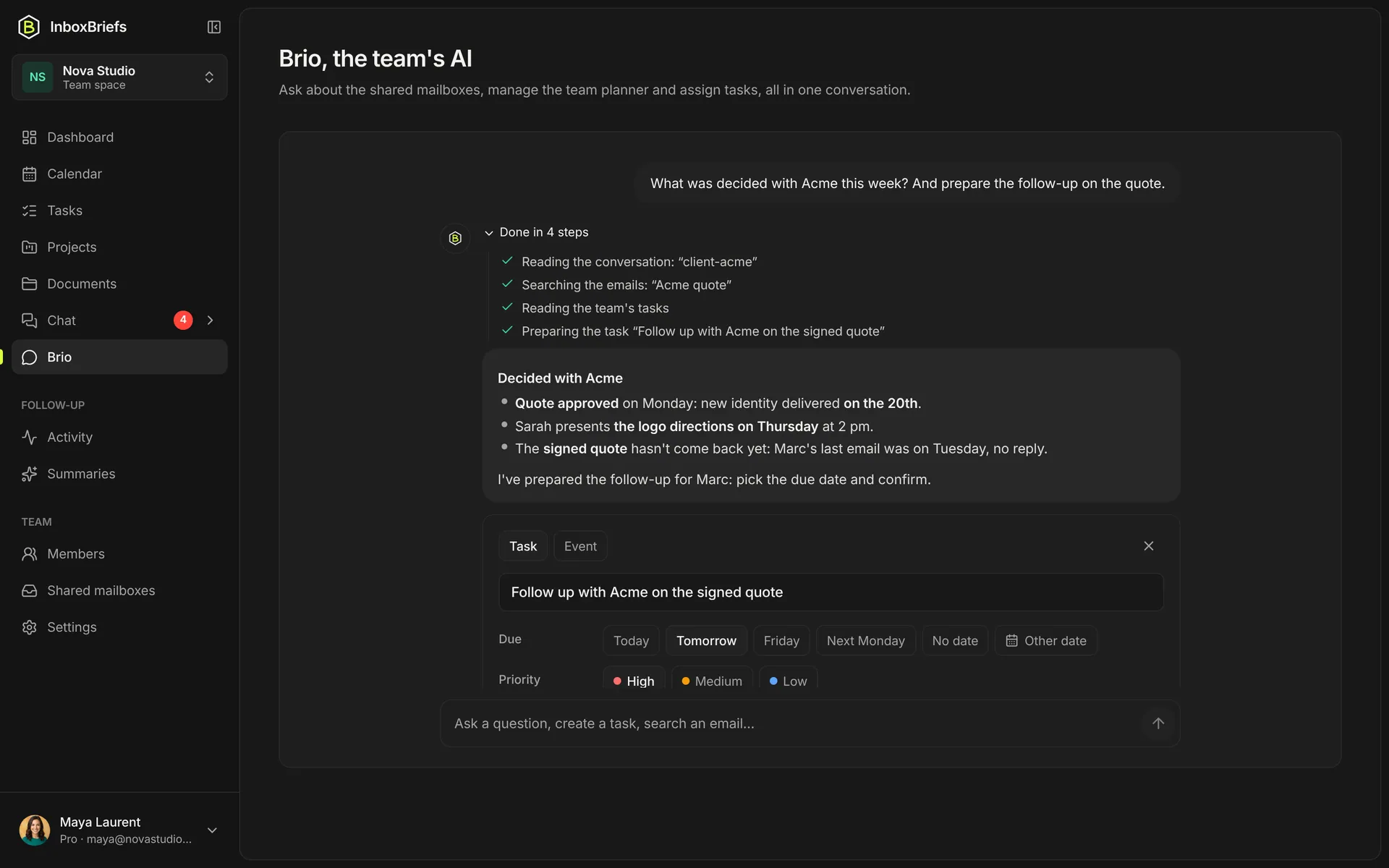
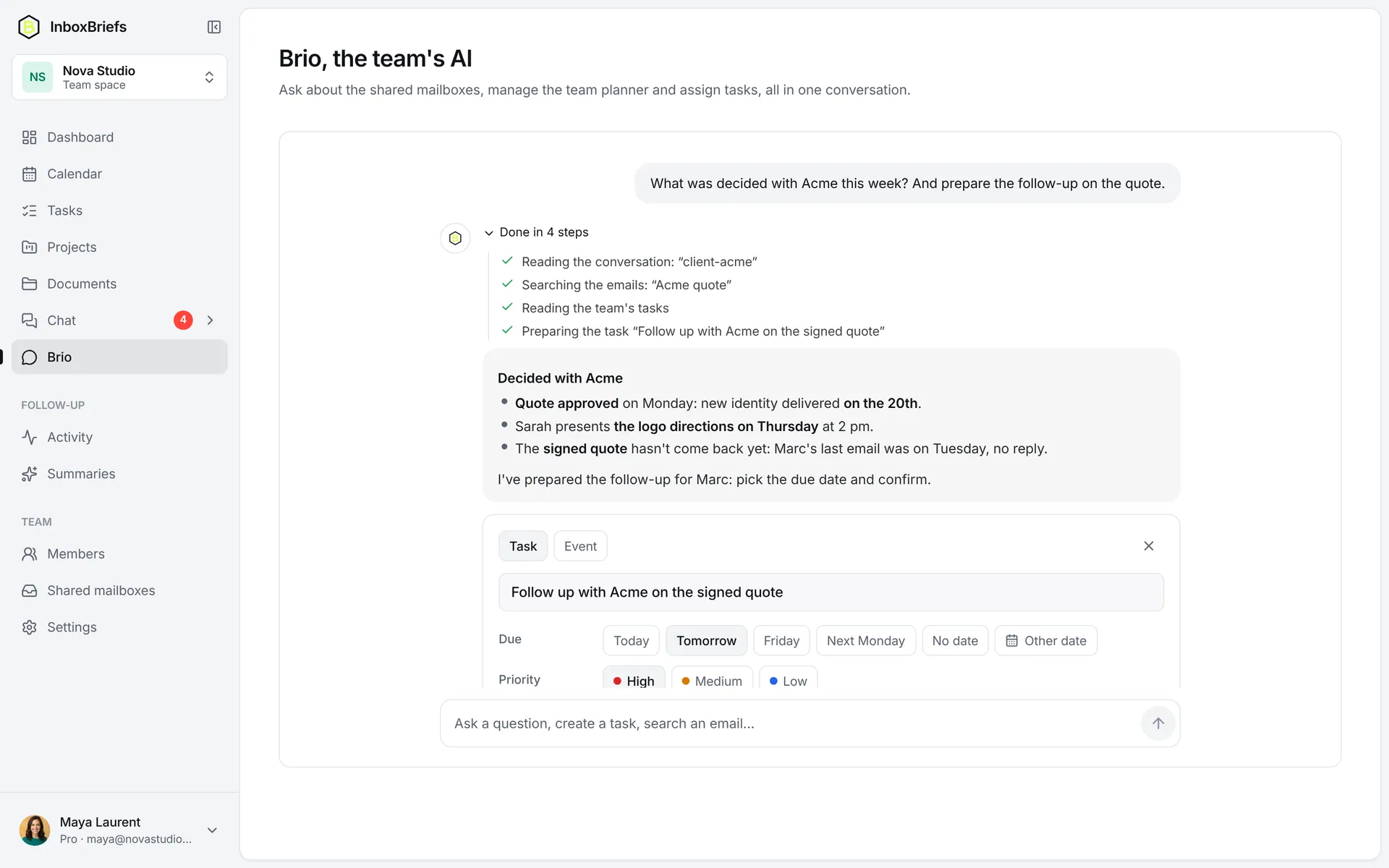
Ask a question: the assistant reads the team's chat, tasks and emails, shows you the steps it took, then prepares the task for you to confirm.
- “Done in 4 steps”: you see what it did
- A card to finish the task in one click
- Stop it: your question comes back in the box
Automations
“If… then…”, written as to a colleague
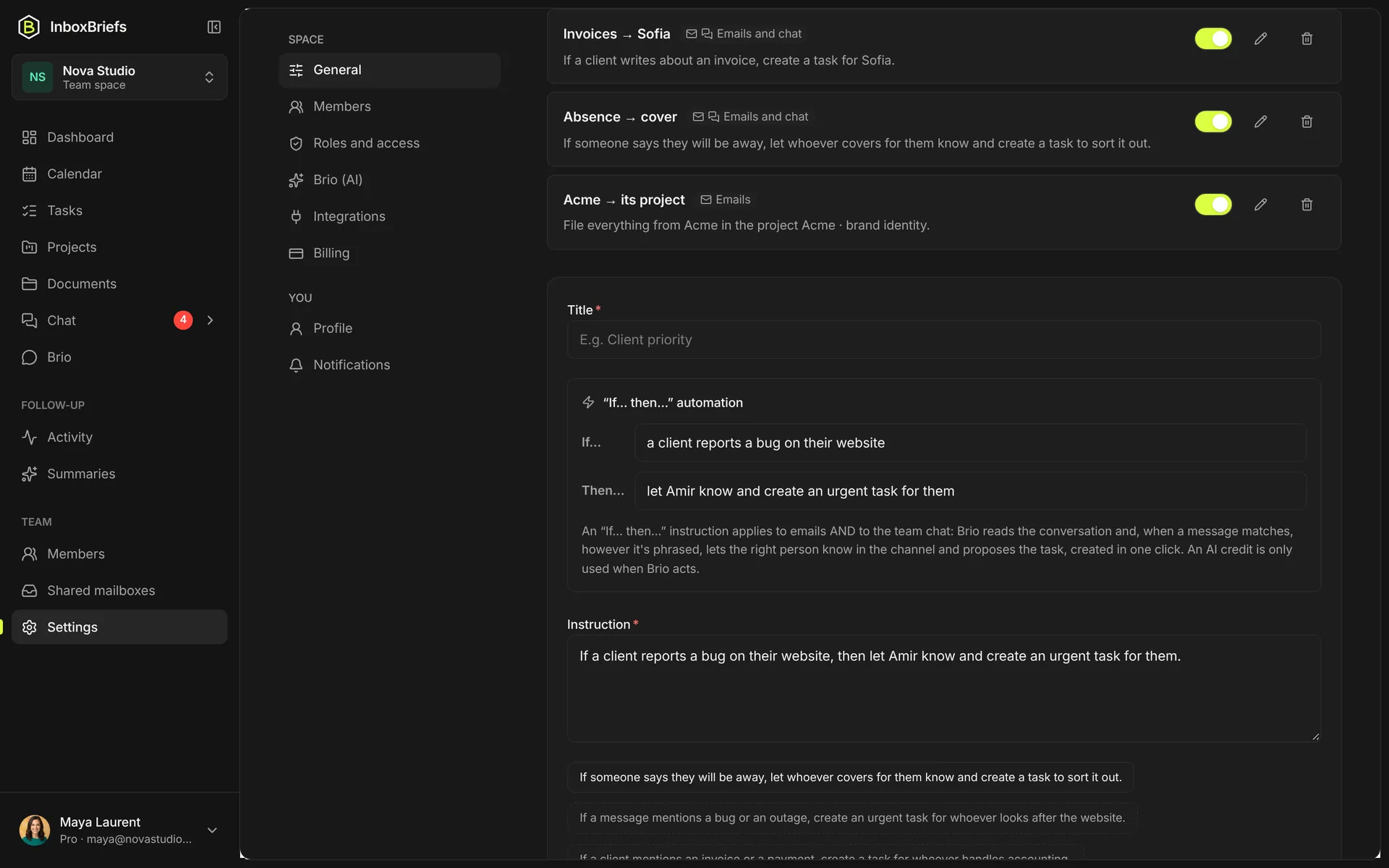
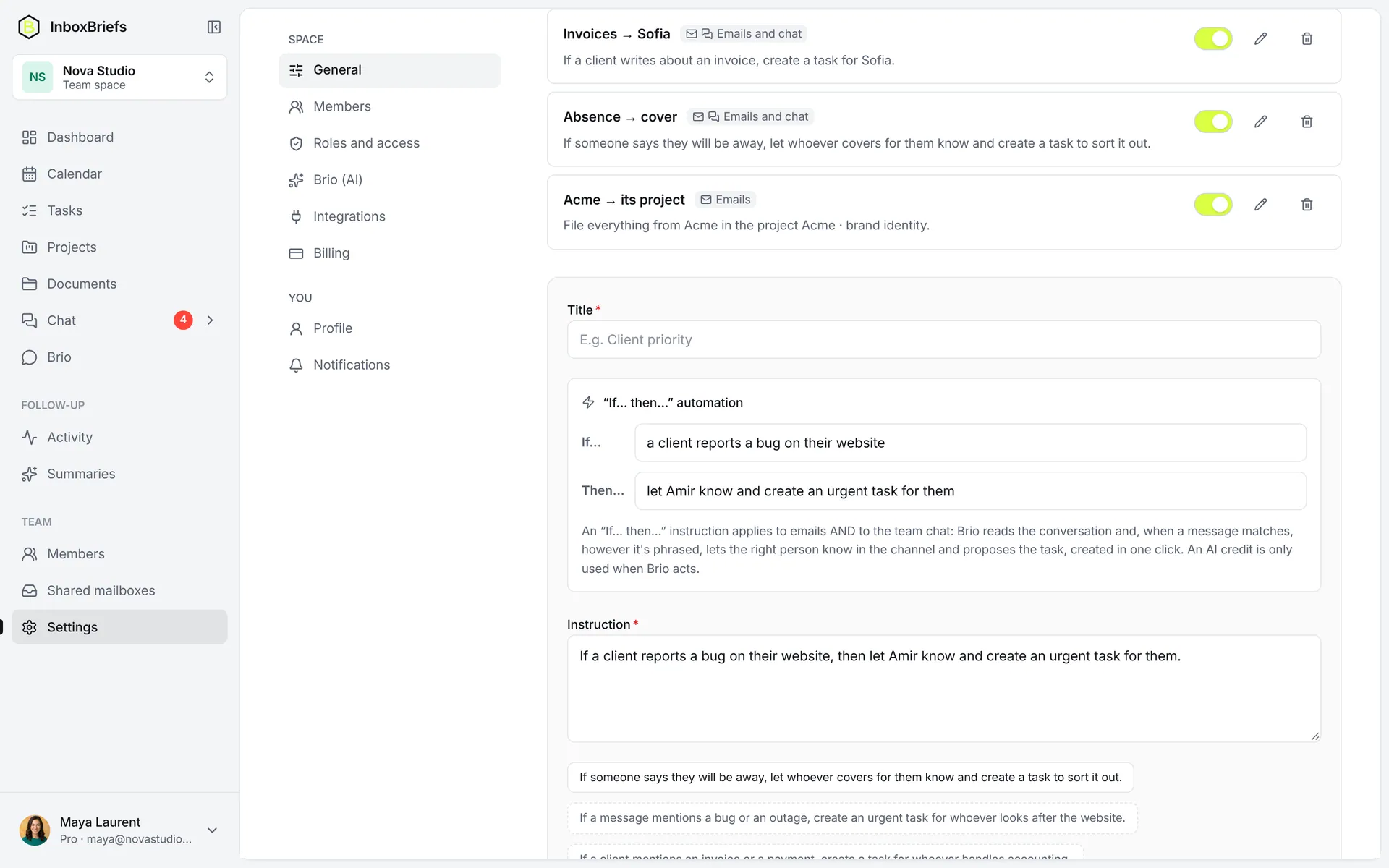
One sentence is enough: “If someone says they'll be away, let whoever covers know and create a task”. It applies to emails and to the chat.
- No complicated interface: your words
- Emails and team chat
- Nothing is created without a click
Summaries
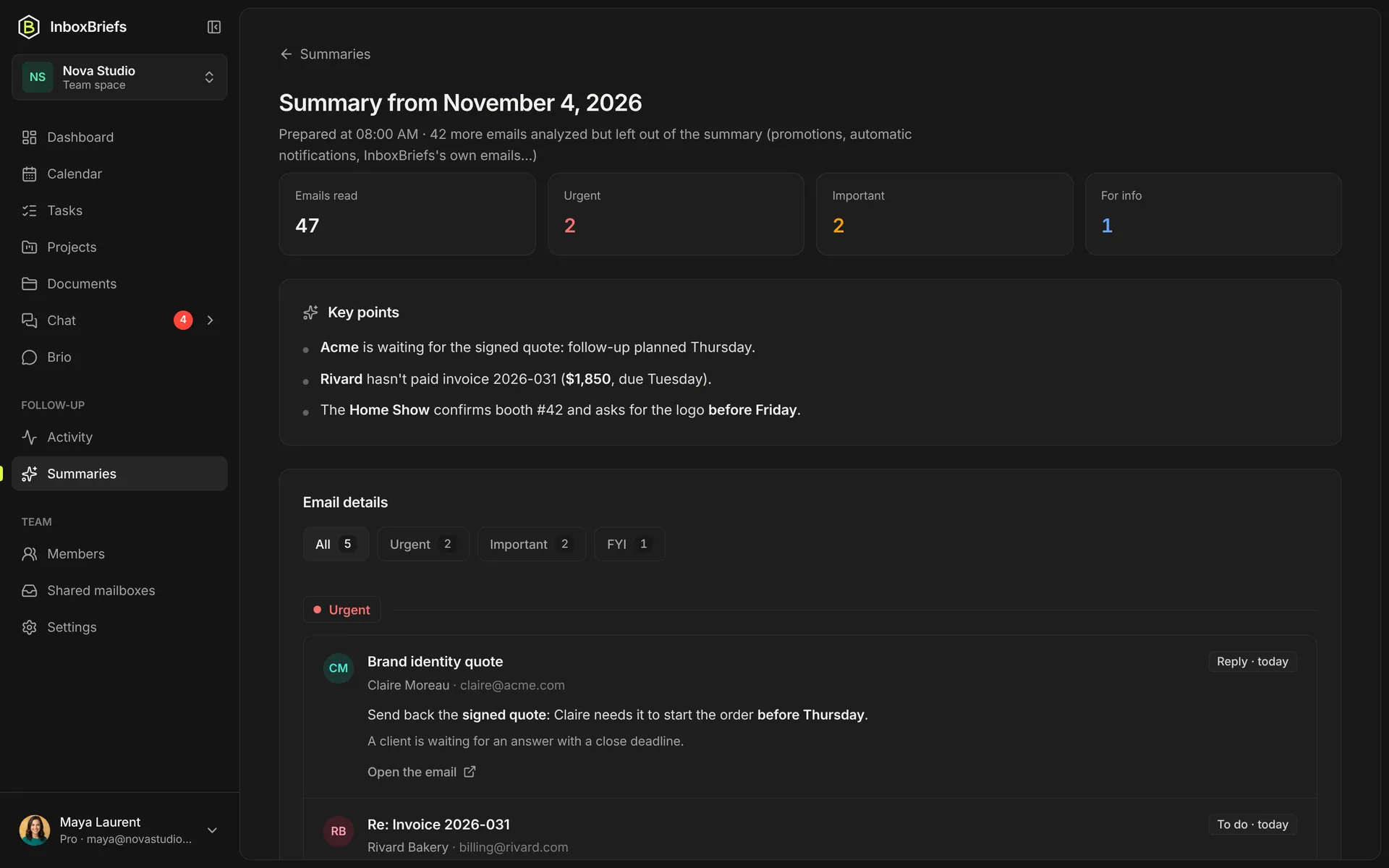
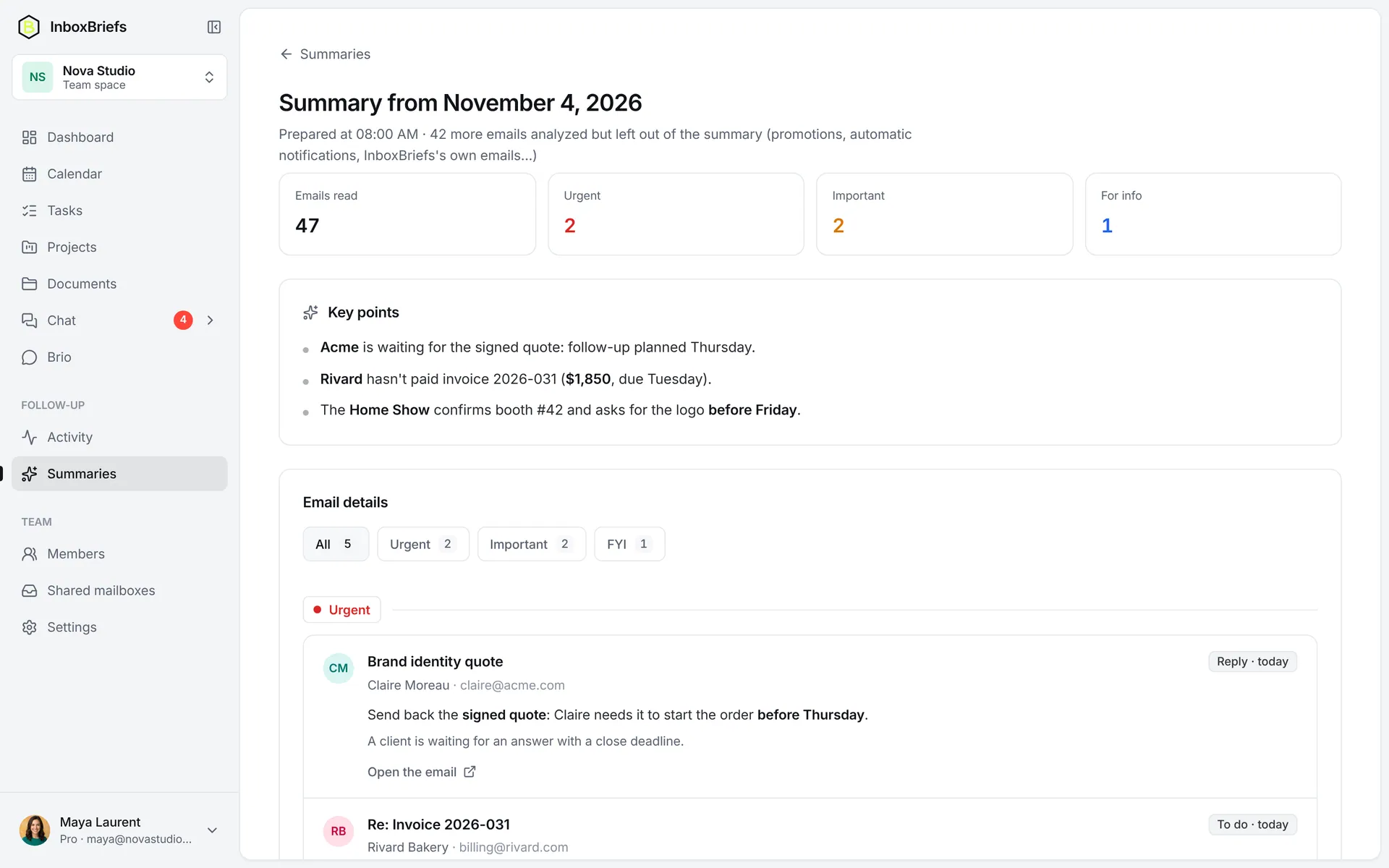
Your inboxes, summed up every morning
Gmail, Outlook or IMAP: every morning, what matters in a few lines, sorted into urgent, important and FYI, with requests already turned into tasks.
- What matters in three lines
- Noise set aside by your automations
- A link to every email
One app
And everything else, in one place
What you just saw is only part of InboxBriefs. Automations, integrations, tasks, projects, docs, chat, calendar, email and AI: one subscription, one app.
 Assign to Sarah




Your team deserves one place
Connect an inbox, invite the team: the rest falls into place in minutes.