Ask the assistant a question
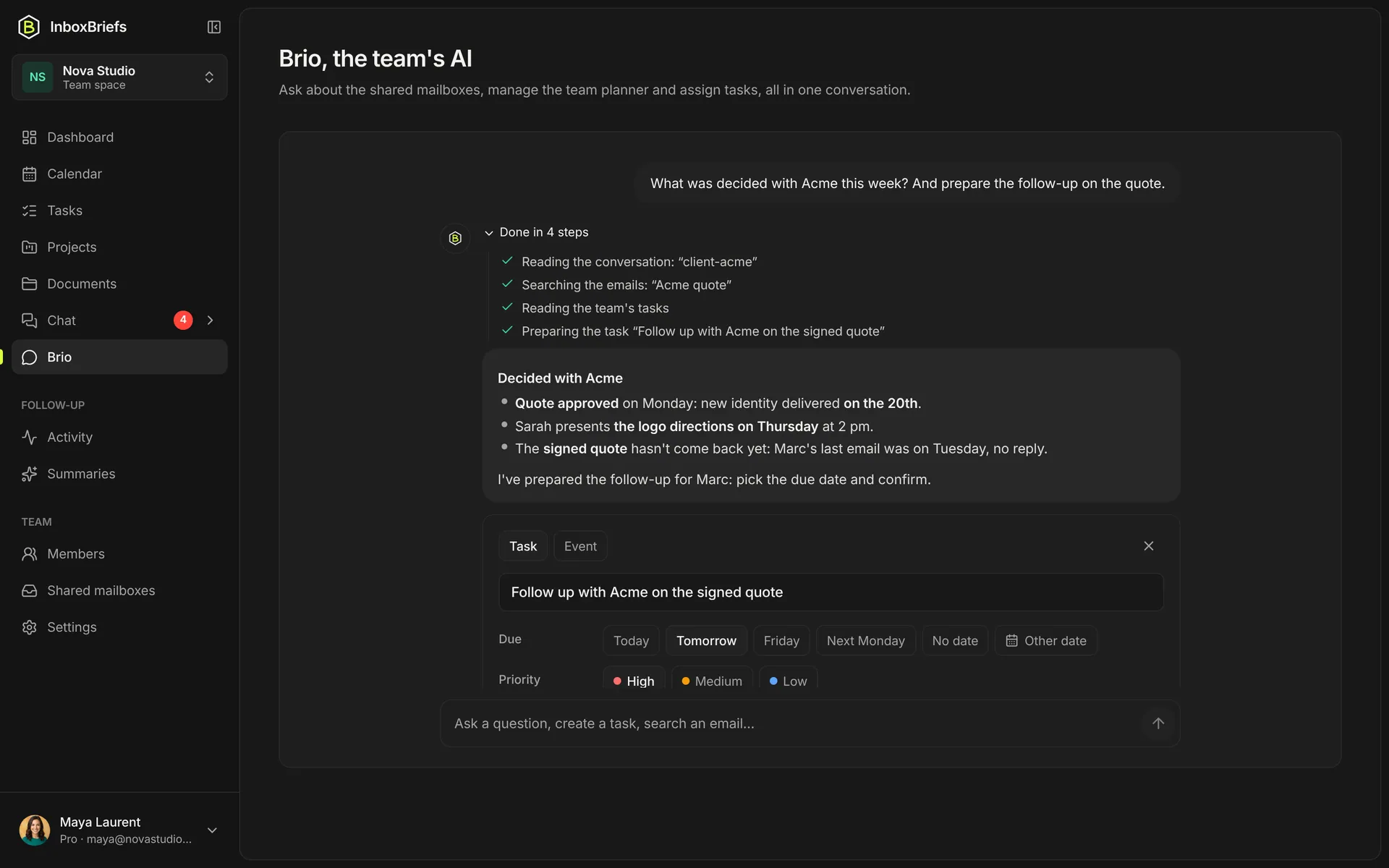
Find an email, create a task, plan your week: ask the assistant in one sentence, it looks and acts for you.
Updated November 4, 2026
Ask
Step 1 of 3
- In the side menu, open the assistant. Or type your question in the ⌘K search and pick Ask the assistant.
- Write your request the way you would say it, then Send.
- The assistant shows its steps while it works (an animated grey line says what it is doing), then answers. Stop interrupts the answer.
What you can ask
- “What are my tasks this week?”
- “Find the latest email from my bank.” — it searches your mailboxes and gives the email's link.
- “Add a doctor's appointment Monday at 2 pm.”
- “What is urgent today?”
- In a team space, also: the team's documents, chat and contacts.
When a detail is missing to create a task or an event, the assistant shows a card already filled in: pick the date, the priority and the project, then Create task.
The assistant reads your emails on demand and never stores them. It never sends an email and changes nothing in your mailboxes.
Show it where to look
Step 1 of 3
- In the assistant's field, click + (Attach an item).
- Pick a project, a task, a document, a contact, a mailbox or a chat channel.
- Ask your question: the assistant looks in what you attached first.
Conversations and memory
- New conversation starts afresh; Conversations finds the earlier ones, to Rename or Delete.
- Say “remember that…”: the assistant keeps it from one conversation to the next. What the assistant remembers lists those memories, and Forget erases one.
Related articles
- Answer the assistant's questionsThe assistant spots what is stuck — an urgent task with no owner, a duplicate, an overloaded day — and offers the next step in one click.
- Undo what the assistant didWhat the assistant does alone is undone in one click; what it does when you ask is listed in its steps, so you can correct it.
- AI creditsWhat uses a credit, what never does, how many each plan gives and when they come back.
- Find anything with ⌘K searchOne box to open a page, a project, a document or an automation, create a task, or ask the assistant.
Didn't find your answer?
Write to us: we answer by email.