The task list and board
Switch between the list and the board, filter by priority, status, person or project, and drag tasks to arrange them.
Updated November 4, 2026
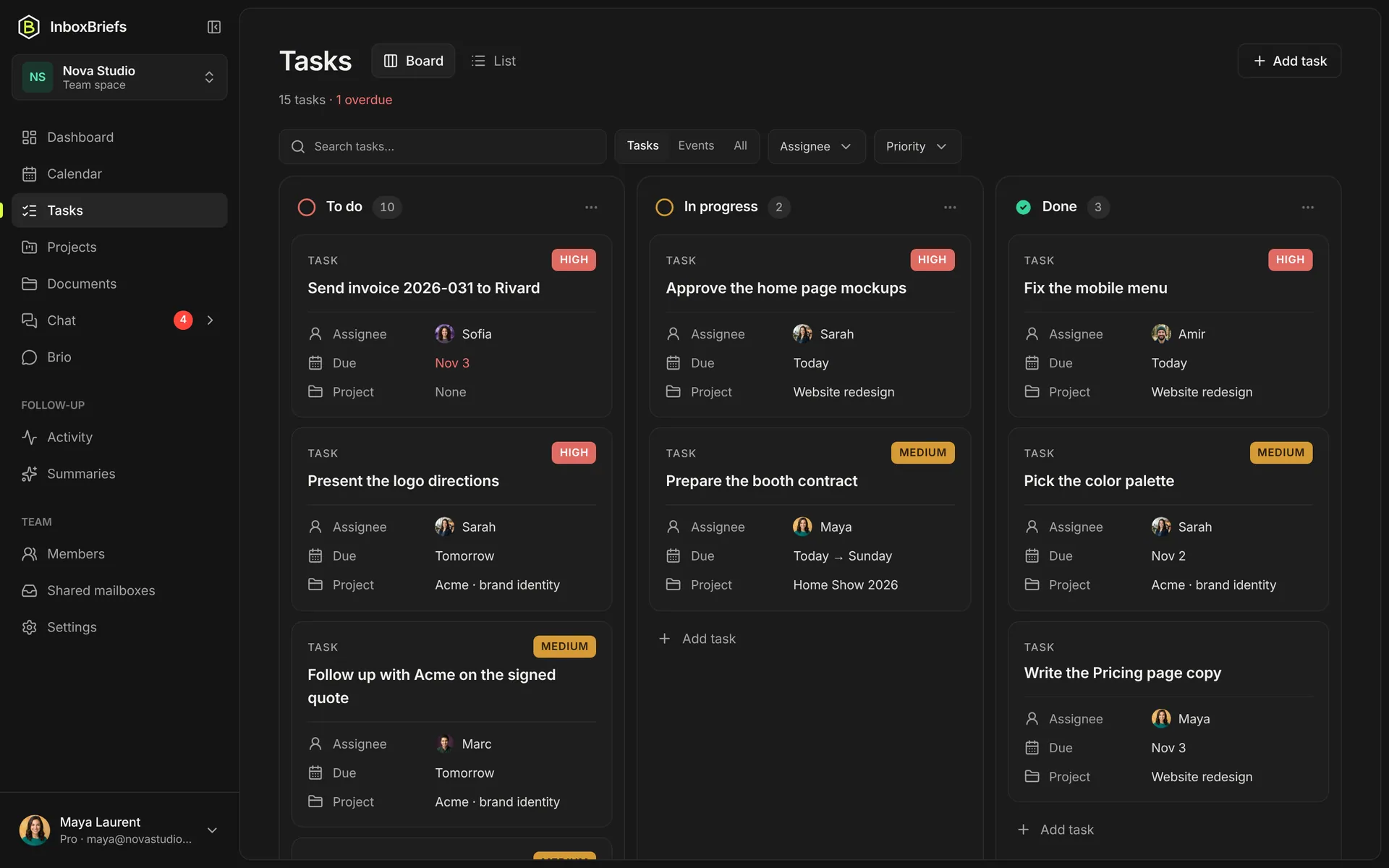
List or board
Step 1 of 3
- Open Tasks.
- Pick List or Board at the top of the page.
- On the board, drag a card to another column to change its status, or within its column to change the order.
With the keyboard: select a card and use Alt + ↑ or Alt + ↓ to move it within its column.
Filter and group
- Priority, Status, Project (including No project) and, in a team, Assignment with My tasks.
- Tasks, Events or All.
- Group by Status, or None.
- Search task/event… finds a line by its name.
Complete, reopen, delete
Complete ticks the task off; Reopen sets it back to do. Delete asks you to confirm, then the app offers Undo for a few seconds.
Related articles
- Create and assign a taskAdd a task in one line, then give it a status, a priority, dates, a project and its owners.
- ProjectsGroup tasks and events by project, with its dates, its status, and what the assistant should know to file them well.
- The planner and eventsYour tasks and meetings by day, week, month or year, plus the meetings read in your emails.
- Find anything with ⌘K searchOne box to open a page, a project, a document or an automation, create a task, or ask the assistant.
Didn't find your answer?
Write to us: we answer by email.