The team chat
Public or private channels, direct messages, threads, reactions and @mentions, and a message turned into a task in one click.
Updated November 4, 2026
On this page
Create a channel
Step 1 of 3
- In the space's menu, open Chat.
- Next to Channels, click New channel.
- Give it a name and a topic (What is this channel about?); tick Private channel to keep it to the people you add. Then Create channel.
Browse channels shows the public channels you haven't joined yet.
Write
- Enter sends, Shift + Enter adds a line, @ mentions someone: if they haven't read it after 5 minutes, they get an email.
- Attach files (25 MB at most per file), or drop them on the writing box.
- Hovering a message: React, Reply in thread, Create a task.
- Private conversations, then New private conversation, to write to a teammate directly.
Turn a message into a task
Step 1 of 2
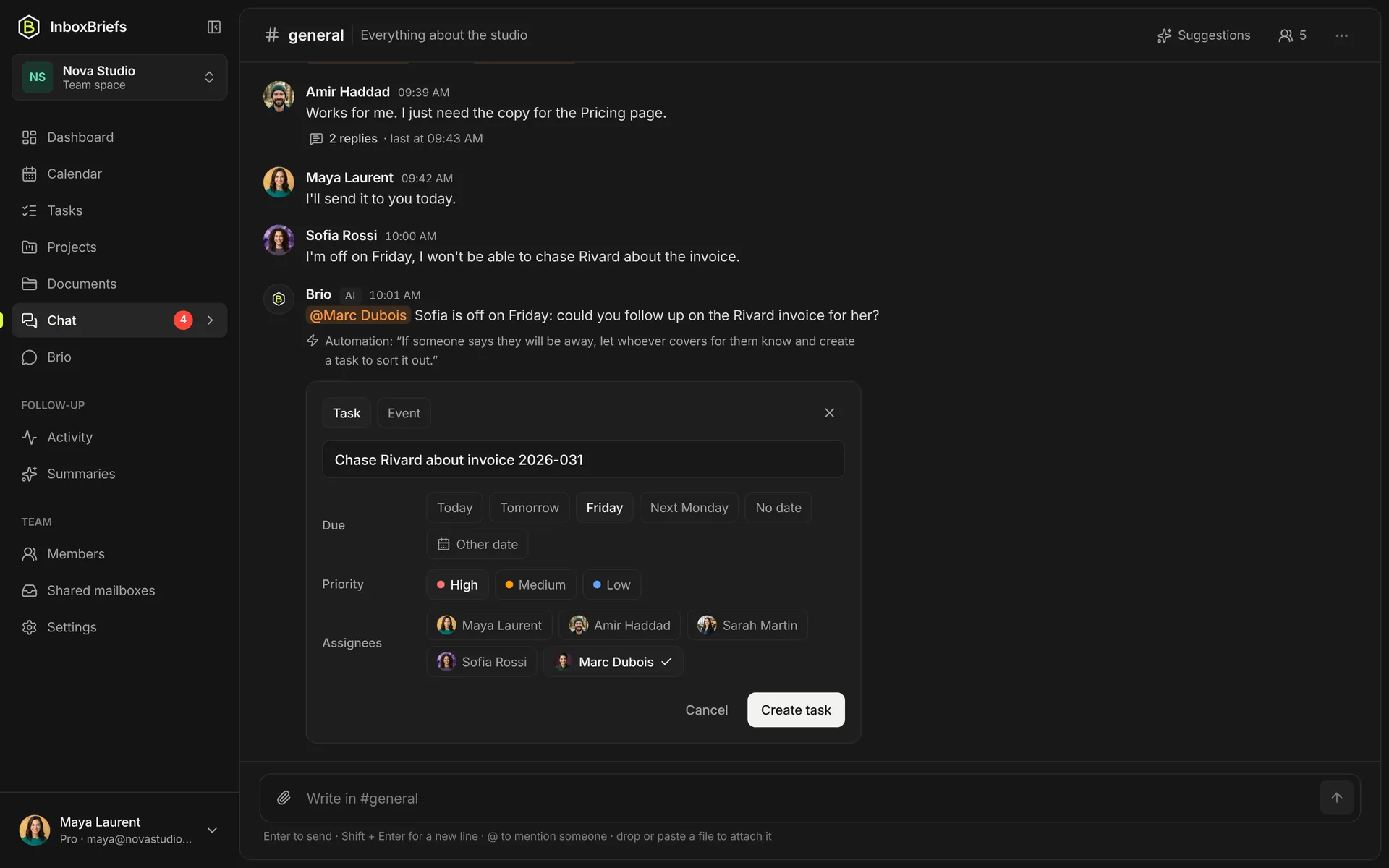
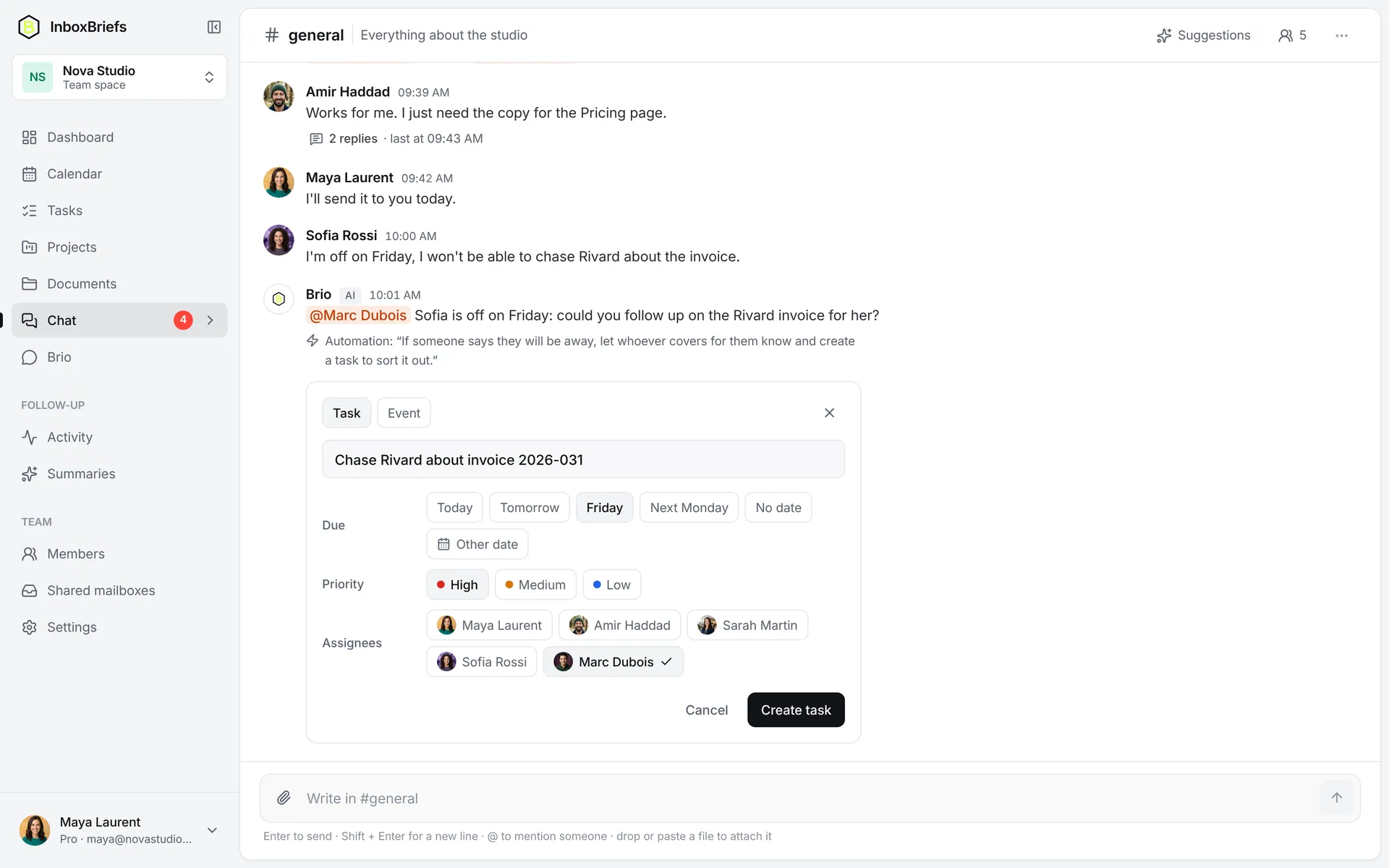
- Hover the message, then click Create a task.
- Pick the owner and the date: the task keeps the link to the message.
The assistant reads the chat too: it spots a request written in a channel and offers it as a task, creating nothing without a click. A “Message in the chat” automation can do it for one kind of message.
The chat has no audio or video calls.
Related articles
- Polls, posts and pinsPost an announcement or a poll in a channel, schedule them, notify the whole channel by email and pin what matters.
- Create and assign a taskAdd a task in one line, then give it a status, a priority, dates, a project and its owners.
- Create an automationBuild an automation as cards: what starts it, its conditions, then its actions. Once activated, it runs on its own.
- Create a team space and inviteCreate your team's space, invite up to 25 members and choose what each one can do.
Didn't find your answer?
Write to us: we answer by email.